Attendance monitoring is an essential part of our statutory requirements and our systems for student support. Academic staff have a vital role in the processes.
STUDENTS WHO WISH TO STUDY FULLY ONLINE/ NOT ATTEND ANY CLASSES- Guidance for academic staff
There are a few fully online courses offered by the University. For all other courses it is expected that students have campus based teaching and learning sessions and that they attend these. Students sometimes ask if they can switch to be fully online/ not attend any sessions. This is not usually possible and the article linked below gives guidance for referring these students for support.
Contents
Importance of Attendance Monitoring
Responsibilities of academic staff
Automated Alerts for students with low attendance
Attendance at supervision sessions for PGT students taking project/ dissertation modules
Attendance for students with delayed or late enrolment
MANAGING POSSIBLE PROBLEMS
Table summarises possible issues and actions to take- click on links to go to more details in the document
| Type of issue | Issue | Action |
| Student does not have an ID card to scan | Student not yet enrolled | Follow process for recording attendance for students who have not yet enrolled |
| Student no picked up their ID card | Encourage student to collect ID card as soon as possible Manually edit their attendance on Sonic | |
| Student forgotten ID card | Remind student to bring card to every session Manually edit their attendance on Sonic | |
| Student has lost their ID card | Tell student to go to help desk to find out how they can get a new card Manually edit their attendance on Sonic | |
| Student cards will not scan | None of the cards will scan- scanner may be malfunctioning | Manually edit their attendance on Sonic (as soon as possible) Report scanner to timetabling team and to touchpoint.reg@coventry.ac.uk Encourage students to still scan- data may be uploaded once scanner fixed |
| Some cards do scan but one or more will not scan | If the card for an individual student does not scan ask the student to update their card- if it still does not work the students should visit one of the SEC help desks for assistance Note that all cards must have been scanned at a touchpoint at least once for manual editing to work fully. If you teach students in a room without touchpoint make sure they have scanned at a touchpoint somewhere at least once (this does not have to be a correct time/ location for the student) Manually edit their attendance on Sonic (as soon as possible) | |
| Room does not have a scanner | Manually edit their attendance on Sonic | |
| Off site event- e.g. field trip or delivery at non campus location | Liaise with timetabling to get event set up so you can manually edit the attendance if this needs to be recorded | |
| Student name appears in register for multiple groups on the module | Students will appear in all groups on a module until they are fully enrolled and the timetabling team have ‘fitted’ them to one group | If student is enrolled the timetabling team usually fit them within 2-3 working days If the student has been enrolled longer contact your timetabling team |
| Timetable not set up correctly or changes to event time/ venue | Type of event not correct on timetable | Contact timetabling team to correct event type |
| Event took place at different time or venue or was cancelled | Contact timetabling team to correct event time/ place or remove event | |
| Attendance fraud | e.g. students scanning cards for classmates who do not attend or students scanning into event but then leaving | Separate document has details for managing this |
| Student has been/ is off sick | Student receiving alerts related to periods of sickness absence | See guidance in this document about how to signpost students |
Importance of Attendance monitoring
Across all parts of Coventry University, Touchpoint is used to monitor student attendance at on campus teaching events. This is needed for:

Responsibilities of academic staff
Academic staff have an important role in making sure the attendance system works effectively by carrying out all the activities below. Each of these links to further details later in the document
- Making sure that all their timetabled events are set up in the right format on CMIS timetabling software
- Always using the correct timetabled rooms for your teaching and making sure your students are attending the correct groups
- Ensuring that any changes/ cancellations of classes are communicated in good time to the timetabling team
- Encouraging and reminding students to ensure they have scanned their cards for every class, including back to back classes in the same room
- Remind students to check University email accounts and respond to any attendance related emails
- Reporting any possible technical problems with scanners
- Reporting any possible attendance fraud/ mis-use of the system by students
- Recording attendance at PGT supervision events for PGT project/ dissertation students accurately. This should be done during the session or immediately afterwards to avoid triggering any attendance alerts for the students. Full document for PGT supervision monitoring available here.
Please note there is a separate document detailing the processes and responsibilities for attendance monitoring for apprentice students
Touchpoint system

We use touchpoint contactless monitors- students hold their id cards close to these at the start of class to register their attendance. This data is linked with the timetable data so that we can tell which events students should have attended and calculate percentage attendance figures. Academic staff can view this information via sonic
When do students need to scan in
Students need to scan in at the start of each timetabled session-
| TIME/ LOCATION OF SCAN | ABSENT OR ATTENDED FOR ATTENDANCE MONITORING |
| ONTIME- students recorded as on time if they scan no earlier than ten minutes before the start of the session, and no later than 15 minutes into the session (so in a 25 minute window). | ATTENDED |
| LATE- students recorded as late if they scan between 16 and 30 minutes after the session start time- this counts as attended for attendance monitoring | ATTENDED |
| ABSENT- students recorded as absent if they scan more than 30 minutes after start time | ABSENT |
| WRONG LOCATION- if students scan at the right time but in a different location this is recorded as wrong location | ABSENT |
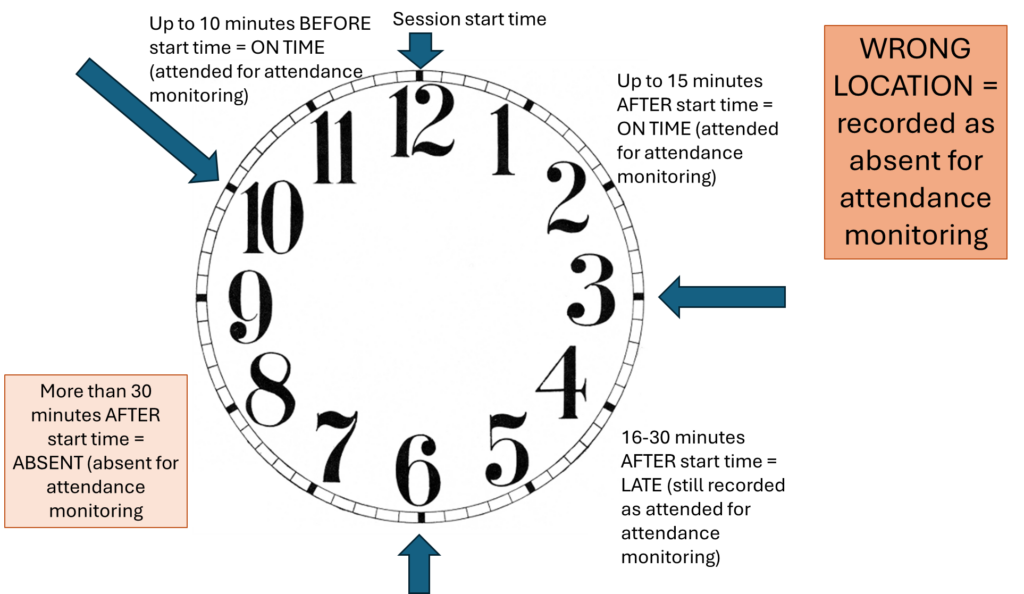
Students must scan for each session that appears as a separate event in their timetable.
- If they have more than one class back to back in a room they must scan if for each separate class.
- Likewise if there are morning and afternoon sessions ALL students must scan at the start of ALL the sessions- indicated with arrows in the example below.

Automated Alerts for students with low attendance
Automated Alerts are generated based on attendance data across the previous two weeks. Any student with at least one mandatory timetabled session within that period would be within scope for alerts, if their average attendance is below the minimum attendance percentage threshold.
Individual students/ courses cannot be removed/exempted from the alerts process. If you think there are process issues/ errors that are causing you students’ attendance to incorrectly appear low please follow the trouble shooting guide above or raise the issue with your Academic Manager.
Please note that the email includes the Customer Services email address and replies from students will be picked up by that team. However, the Customer Service team are not responsible for sending the emails, the system for this is managed by Registry.
UKVI monitored visa students
Students who are subject to UKVI visa monitoring may receive alert emails if their attendance is low. Academic colleagues can download information about which students have received alerts via Sonic.
If student attendance does not improve they may receive further alerts. Students who receive high numbers of alerts are at risk of forced withdrawal from the course, so if your students are receiving alerts please encourage them to improve their attendance and to seek support/ guidance if they need this.
If you think there are process issues/ errors that are causing you students’ attendance to incorrectly appear low please follow the trouble shooting guide above to fix or report the issue.
Other students
In 2024-25 we piloted sending low attendance alerts to students who are not subject to UKVI vias monitoring. This process has been rolled out to most students in Colleges/ School of Health/ London campus and CU Group campuses from October 2025.
These email alerts are worded differently from those sent for UKVI visa monitoring and are designed to remind students of the importance of good attendance and to encourage them to seek support/ help if they are having problems attending. However, the final alert email does remind students that The University can forcibly withdraw students with sustained poor engagement.
As with the UKVI visa alerts, academic staff can download information about which of their students are receiving these alerts via SONIC. If your students are receiving alerts please do encourage them to attend more and to use the support services if they need to.
If you think there are process issues/ errors that are causing you students’ attendance to incorrectly appear low please follow the trouble shooting guide above to fix or report the issue
Reporting possible issues with the attendance monitoring system
Reporting problems with touchpoint scanners
We use regular reports from the system to try to identify if any scanners have stopped working. The scanners store information locally for several weeks, so usually when a scanner has not been sending data once it is fixed we are able to retrieve the information and the ‘missing’ attendance information will upload overnight.
If academic staff think a touchpoint scanner is not working at all please contact your local timetabling team as soon as possible. They will liaise with the touchpoint team to get it checked and fixed.
If the card for an individual student does not scan staff should ask the student to update their card- if it still does not work the students should visit one of the SEC help desks for assistance.
See below for information about how to edit individual student attendance edited.
SONIC attendance data
Attendance data and confidentiality
Please remember that information extracted from SONIC/ Universe should not be distributed to any person who has not been authorised to view that information, e.g. as a user of Universe.
Data downloaded from (or mailed by) the attendance system are subject to the same confidentiality rules as any other student-related information in Universe, and must be treated as confidential and/or sensitive, in line with the definitions provided in the Data Protection Act/GDPR.
Viewing attendance data in SONIC
Students can view their own attendance information via NOVA
- Attendance data uploads overnight so any attendance/ edits to attendance will not be visible to students until the net day
Academic staff (who have Universe access) can view and edit attendance information on SONIC
Registry have provided a detailed guide for this- linked here
You can look at attendance data:
- For individual students
- For all the students on a module
- For individual taught sessions on a module
Manually Editing Sonic Attendance Records
If a student physically attends a class but cannot record their attendance due to forgotten id card or for another reason, the diagram below shows the processes for this to be manually edited.
-Academic staff can edit student attendance information in Sonic themselves (see guidance document linked here). This should be done during the session or immediately afterwards to avoid triggering any attendance alerts for the students.
-The student engagement centre (SEC) can edit the student attendance records as long as academic staff have confirmed the student did attend- they need student id, module, date, time and room number.
The SONIC attendance system will lock a student’s percentage attendance information after 6 weeks. So events edited after that time will not change the overall percentage attendance information. If students request changes to events more than 6 weeks ago they should be told these cannot be changed.

TIMETABLES AND ATTENDANCE
The attendance monitoring system requirements timetables to be correctly set up and any changes promptly notified to the timetabling team
Format of teaching events in CMIS timetabling software
Our attendance monitoring system uses information from the CMIS timetabling system so that it knows where and when each students should be scanning in. For this to work properly it is important that all the events on CMIS are correctly formatted.
Online and on campus events
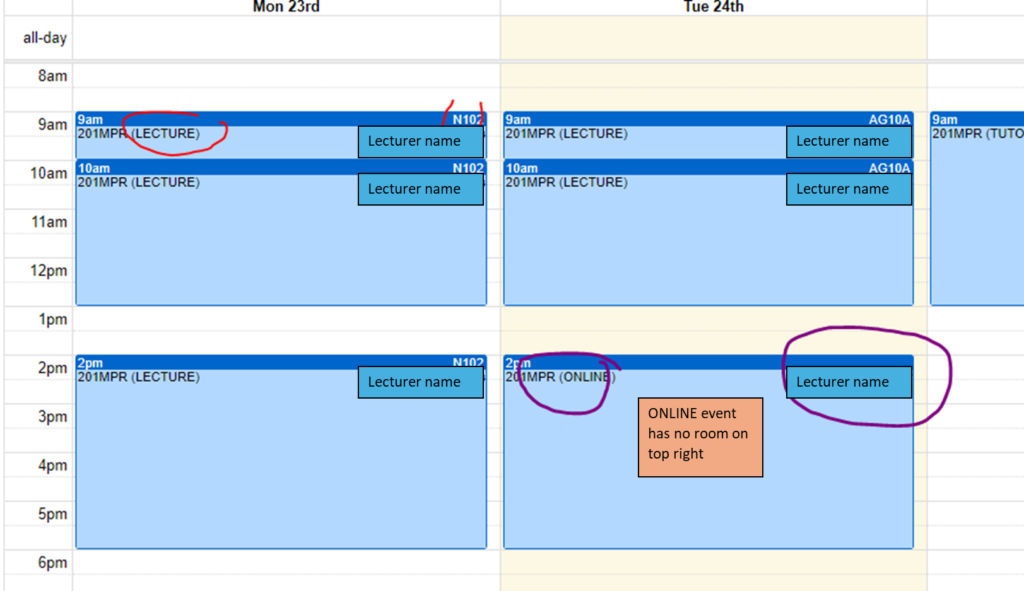
The timetable needs to make it clear when an event is online rather than on campus- as touchpoint monitoring is not possible for online events. Make sure this is clear to the timetabling team when you are booking your events.
If you have sessions that are delivered online make sure that it says ONLINE on the timetable and does not have a room in the top right corner- see example below– the lecture has a room number but the online sessions does not. The system will not expect student to scan into these online sessions. If your online sessions are not labelled in this way they will affect the student attendance record .
Mandatory and optional events
If an event is on the student’s timetable as mandatory the touchpoint system will mark students as absent if they do not scan their card on time. This will then affect their percentage attendance data. It is important that information about teaching events provided to timetabling clarifies if they are mandatory or optional. Students’ percentage attendance will not be affected if they miss an optional session.
Optional and Mandatory ‘Drop in’ Events
If your event is a ‘drop in’, where students can choose when they turn up during the time period, you must let the timetabling team know this when they are booking your events. If a session is not a ‘drop-in’, students are expected to arrive within 15 minutes of the start and will be marked as late if they arrive after this
There are 2 distinct types of drop in sessions- make sure you have indicated the correct version to the timetabling team
- Drop in Optional This is an optional session- students can come along if they want to. This session DOES NOT count in calculating student attendance percentages.
- Drop in Mandatory Students MUST attend but come along for short time periods within the session (e.g. each students comes for 10 mins to discuss their coursework with the tutor). This session DOES count in calculating the student’s attendance percentages as they MUST attend
Course Hour
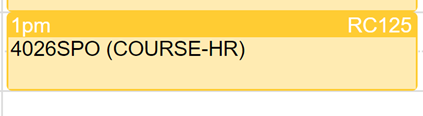
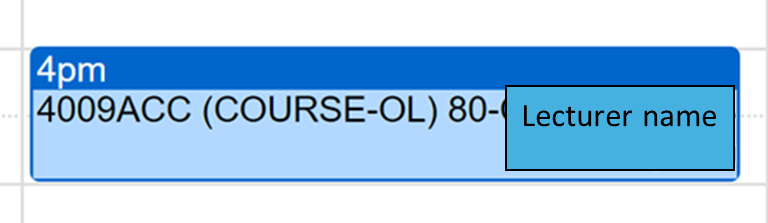
Some students have a ‘course hour’ sessions. This should be specifically labelled so it is clear to students and so we can report on these sessions separately for attendance.
- If they are on campus they should be labelled ‘COURSE-HR’ and have a room assigned. These will be captured as mandatory events in the SONIC attendance monitoring system
- If they are online they should be labelled ‘COURSE-OL’ and will not have a room number. Academic leads will to be able to capture some attendance information for these if they are run via Engageli.
Launch and Induction events
Specific timetable events are now available for module/ course LAUNCH events and for INDUCTION events. These are both mandatory attendance event types.
Offsite events
Sometimes students have offsite events, such as visits. Please make sure you have told timetabling so they can cancel any on campus events. They can also indicate the offsite events on the timetable so student are aware they still have a teaching event. If required these can be set up so you can record manual attendance at these off site events
Block bookings and back to back events
Subdividing block bookings
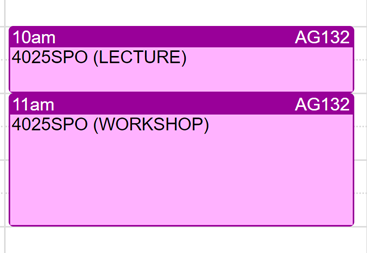
The touchpoint system requires students to scan in for the start of each event. If you have long events you may want to set them up on the timetable with one or more breaks- this will then treat this as several different events and require the students to scan in again after each break. This will give you more detailed information about attendance in each part of your teaching.
Back to back events in the same room
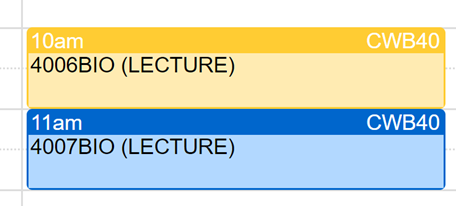
Sometimes students may have back to back events in the same room. For example, they may have a session for one module 10:00-11:00 and then a session for the same module or a different module 11:00-12:00. If students have such ‘follow on’ classes in the same room please remind them they need to scan in again for the second event or the system will mark them as absent.
Student groups and attendance
When modules are divided into groups for teaching events students are assigned to a specific group in a specific room. They must attend their assigned group. The system will mark them as absent if they attend a different group in a different location or at a different time.
If a student scans at a group they don’t belong to, but is subsequently moved to that group, their attendance will be updated automatically.
Changes to timetabled events
If there are any changes to timetabled events, including last minute cancellations, room changes or changes in whether events are mandatory or optional, the academic team need to contact the timetabling team so they can edit the CMIS timetabling system. Ideally this should be done before the event so that students will have the correct information on their live timetable. if this is not possible it is important timetabling are notified as soon as possible after the event. This will then correct the information in the attendance system. These changes need to be made as soon as possible after the event so that warnings about poor student attendance are not triggered in the interim.
Cancelled sessions
If an event is cancelled timetabling must be informed. Please do this as soon as possible so that student timetables can be changed to show that the event has been removed. Please note that approval from senior staff in your area will be needed for any cancellations. If there are last minute cancellations, please do inform timetabling even if it is after the event- the attendance system will retrospectively correct the records when the cancellation is noted on the system
Changes of room
Teaching should take place in the rooms assigned on the timetable. If a different room is used students will be marked as ‘wrong location’ in the attendance system. If last minute changes to venue take place due to problems with rooms you need to inform timetabling as soon as possible, even if it is already past the date of the event. Timetable changes made after events have taken place will correct any wrong location scans on the system and correct a student’s record.
Student Groups and attendance
In many modules students are assigned to groups for timetabled events
Students must attend the correct group that they are assigned to- or their attendance will not be recorded correctly and they will show as absent.
Academic staff can see which students are in which groups on Sonic
Note that students will appear in all groups on a module until they are fully enrolled and the timetabling team have ‘fitted’ them to one group
When a student completes their enrolment the timetabling team usually fit them within 2-3 working days
If the student has been enrolled longer and is still in multiple group please contact your timetabling team
Online Attendance
If students want to change their delivery format to study fully online
There are a few fully online courses offered by the University. For all other courses it is expected that students have campus based teaching and learning sessions and that they attend these. Students sometimes ask if they can switch to be fully online/ not attend any sessions. This is not usually possible and the article linked below gives guidance for referring these students for support.
UKVI visa students
If Visa student are in the UK they must have campus events on their timetable to attend (note students completing placement/ internships etc. have alternative attendance monitoring processes in place). This includes any PGT students in their final semester who have a visa. These students must have on campus meetings with their supervisor and these must be recorded correctly.
Non-visa students
If any students who are not UKVI monitored have serious personal circumstances that mean they need online study as a form of ‘reasonable adjustment’ this must have be approved by Registry. This is because SLC or other funding may be affected. See article linked above for information about how to refer these students for support.
Attendance for online events
Students must NOT be marked as present in Sonic for sessions they attended online rather than physically. The touchpoint system is used for visa compliance, contact tracing and mandatory reports on space use- adding in online attendance would compromise these.
ATTENDANCE FRAUD
There is a separate document explaining how staff can be vigilant for attendance fraud and what actions academic staff should take
Attendance at supervision sessions for PGT students taking project/ dissertation modules
Most PGT students in their final semester are completing a project/ dissertation and their only teaching sessions may be supervisor meetings.
There is a specific process in place for manually recording attendance at these sessions. It is important this is followed correctly to provide data to ensure compliance for our UKVI monitoring of sponsored (visa) students.
If you supervise project/ dissertation PGT students, please make sure you are familiar with the process in the guide which is linked below.
It is essential that supervisors manually update the attendance immediately following the supervisory meeting to avoid students receiving the automated attendance reminder emails.
Please note that for visa students who are in the UK, the supervisory sessions must be face to face and take place on campus, they cannot be online.
Registry detailed guidance for PGT supervisors linked here
ATTENDANCE FOR STUDENTS WITH DELAYED OR LATE ENROLMENT
Some students have problems that mean they cannot enrol on time for the start of teaching.
International (visa) students
All late enrolling students are dealt with by staff from CURA. Academic staff do not need to provide attendance information for the late enrolment process.
Once students are enrolled they can use touchpoint as normal to record their attendance. The Sonic system will not start calculating their attendance percentage until they enrol. So any events prior to their enrolment will not trigger any warnings about non attendance. Attendance before enrolment can’t be added to Sonic after enrolment.
(We no longer have an interim attendance card system to manually capture attendance for these students)
Apprentice students
Note that for apprentice students attendance information is needed for ‘first day of learning’ – so paper attendance records prior to enrolment are essential for these students
Please see separate document with details of attendance monitoring for apprentice students for details
WHEN STUDENTS ARE OFF SICK
If a student has a short-term illness and may be away for a week-or-so, there is no need for them to let us know officially, and short breaks alone will not trigger attendance alerts if their attendance is normally good.
The University does not authorise absence, so if a student is off for a longer period of time then they can expect to continue to receive attendance reminders to maintain their awareness of the range of support services available. If a student studying on a visa is expected to be away for more than two weeks then they should be advised to contact International Student Compliance to discuss their absence.
Where a student is at risk of missing a significant amount of teaching, we may require them to suspend their studies with a temporary withdrawal, enabling them to return when ready to fully engage with learning.
LINKS TO OTHER KEY DOCUMENTS
Registry guide for academic staff on use of SONIC to view/ edit attendance data- linked here
Registry guide for academic staff on monitoring attendance at supervisory meetings for PGT project/ dissertation students- linked here
There is a separate document explaining how staff can be vigilant for attendance fraud and what actions academic staff should take- linke below
Separate document with details of attendance monitoring for apprentice students- link below
STUDENTS WHO WISH TO STUDY FULLY ONLINE/ NOT ATTEND ANY CLASSES- Guidance for academic staff
CONTACT DETAILS
Local timetabling teams- to report possible technical issues/ changes to timetables
| College of the Arts and Society | timetabling.cas@coventry.ac.uk |
| College of Business and Law | timetabling.cbl@coventry.ac.uk |
| College of Engineering, Environment and Science | timetabling.ees@coventry.ac.uk |
| School of Healthcare | timetabling.shc@coventry.ac.uk |
| CU Coventry | timetabling.cuc@coventry.ac.uk |
| CU London | timetabling.cul@coventry.ac.uk |
| CU Scarborough | timetabling.cus@coventry.ac.uk |
| Coventry University Wroclaw | timetabling.wro@coventry.ac.uk |
| Coventry University London | timetabling.culc@coventry.ac.uk |