This article introduces the steps to use Inspera Templates in creating and scheduling assessments. The templates created for the University Group are further described in this article, explaining the underpinning assumptions for each template to allow you to choose the right one for your assessment.
You can edit or change the template as long as the test is not activated. Once the test is activated, you will need to deactivate the test if you would like to edit/change the template. However, this can only be done as long as NO candidates have started the test.
Below are 4 simple steps that you can do to use the Template option.
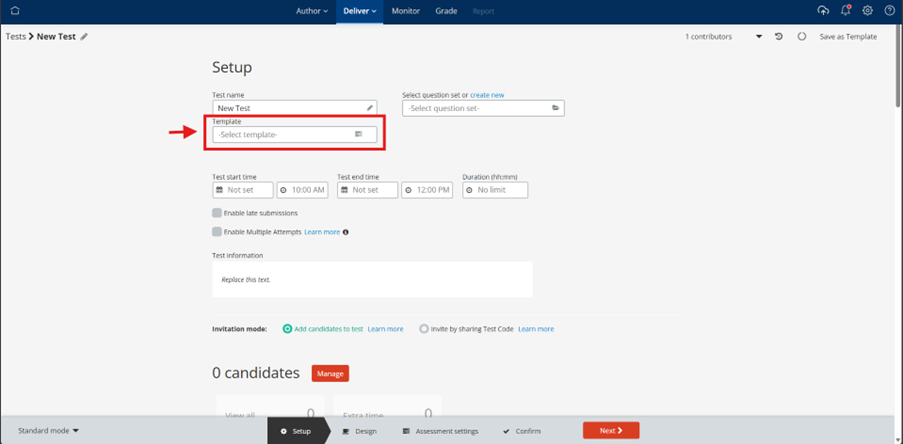
Step 1: Press the template option to see the list of templates
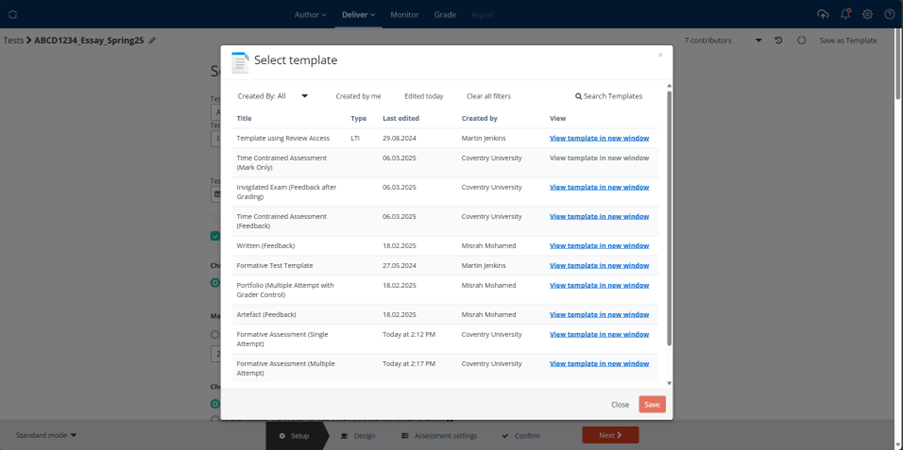
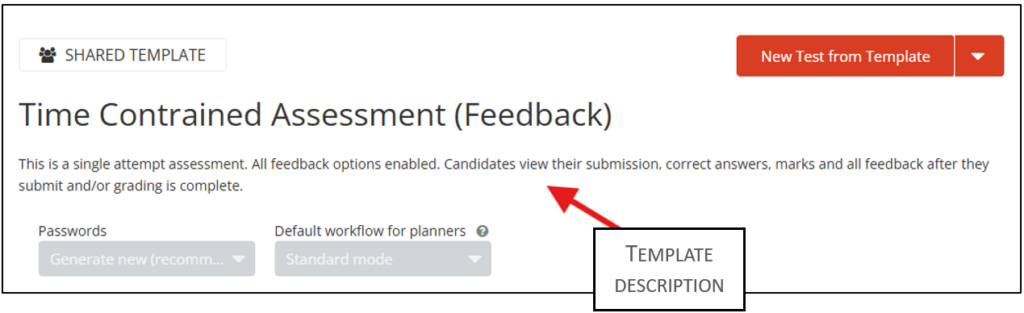
Step 2: Select the template from the list. You can view the templates and their descriptions in a new window if you press ‘View template in new window’.
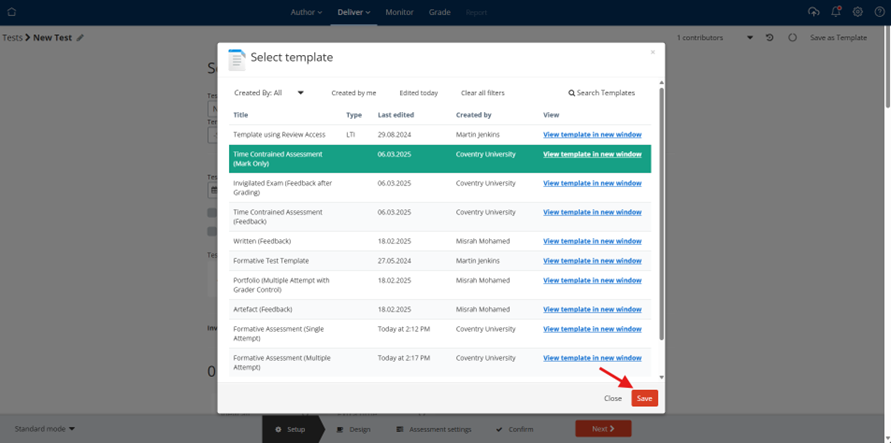
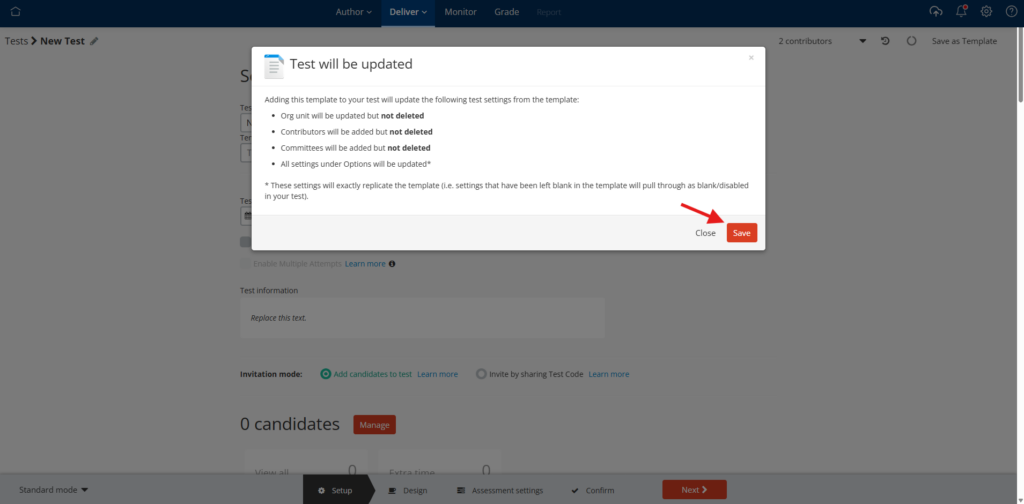
Step 3: Press ‘Save’ and a window will appear to inform you what information is going to be updated if the action is confirmed. Please refer to this Inspera Help Centre article to find out further about which group of settings will be updated when a template is added/changed to the test.
Step 4: Click save again if you are happy with the details to be updated. After confirming, the test will be updated with the data from the template.
Step 5: This step is optional and depends on the template you select. If you choose one of the following templates, you will need to set a date for the post-submission review and/or release of final results.
- Time Constrained Assessment (Mark Only)
- Time Constrained Assessment (Mark and Feedback)
- Invigilated Exam (Mark Only)
- Invigilated Exam (Mark and Feedback)
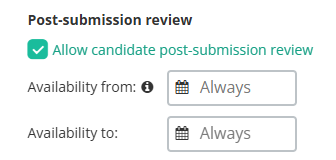
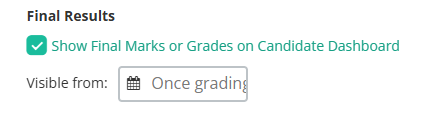
Notes: For invigilated exams, the dates selected for visibility should be set after the Exam Board. For time-constrained assessments, candidates should be informed that the results are indicative and subject to approval if they are released before the Exam Board.
Once you have completed all the steps above, you can continue scheduling the assessment by going through Steps 3-6 described in this article: How to prepare an Inspera Assessment.
If you’d like to modify the settings on the template that you apply to a test, please refer to this article on Making Changes to Inspera Assessment Templates.