This article sets out the workflow, with recommendations, for grading of assessments in Inspera which are set up to allow students multiple attempts. The grading workflow will be different depending on when the assessment was set up and whether the Assessment Settings were selected to ‘use a Grade Scale’ or ‘Not to use a Grade Scale’.
It is important to note that through the LTI integration a percentage score is always passed back from Inspera to Aula. The choice of whether to use a Grade Scale or not impacts on what students will see on the Candidate Dashboard in Inspera. Choosing not to use a grade scale will mean the students see a mark out of the total available on the test; the grading workflow for this option is simpler. If a grade scale is used then students will see a grade, in Inspera only. The grade scales available are:
- Pass/Fail
- Undergraduate – giving grades of 1st, 2:1, 2:2, 3rd and fail
- Postgraduate – giving grades of Distinction, Merit, Pass and fail
- 0-10 and 1-100 grade scales.
Note on setting up Multiple Attempts
How Multiple Attempts are deployed in the assessment is set when the test is scheduled. Multiple Attempts can be generated by Inspera (subsequent attempts become available once students have completed an attempt) or can be set to be available at defined times. Each ‘attempt’ will generate a ‘child’ test (called Attempt 1 …; Attempt 2 … etc) both in the Deliver module (see Fig 1 below) and Grade module. Attempts generated by Inspera become visible once a student has initiated that attempt. The ‘child’ tests where defined attempts are used are created when the test is set up.
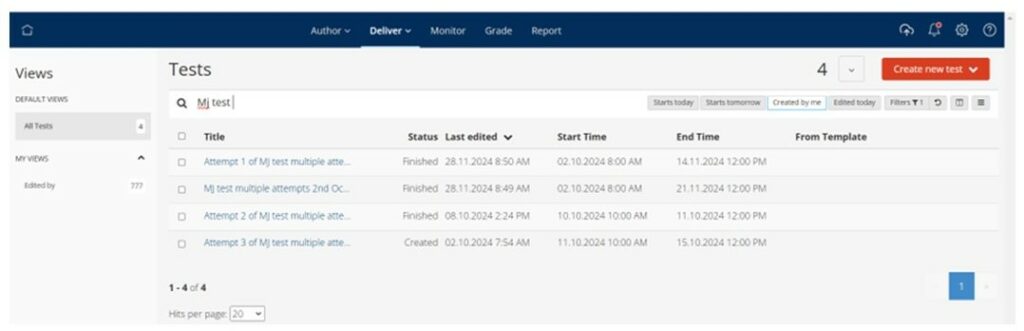
Figure 1: Showing Parent and Child tests listed in Deliver module
Grading multiple attempts
A separate ‘attempt’ is created for each iteration of a test using multiple attempts. When viewing these ‘attempts’ (ie Attempt 1; Attempt 2 etc) in both Deliver and Grade, only the students who have taken that ‘attempt’ will be shown as candidates on it. All students will be listed in the Parent test.
Grading can be undertaken on both the Parent and Child tests. However, it is not a requirement to Grade the child tests unless there is a need to adjust the marks on automatically marked questions or where manually marked questions have been used, these will need to be graded for each ‘attempt’.
The following guidance is based on assessments being created to record the highest attempt score as the final grade and grading being undertaken at the Parent test level.
Not using a Grade Scale
If a grade scale is not used then, if no adjustments are required the marks can be confirmed by selecting the ‘Confirm’ button. The highest attempt will be pulled through as the final mark.
The marks achieved by each student on the different attempts can be viewed in the ‘Grading Overview’ of the Grader workspace, by selecting the drop-down menu against the student ID. Please note grading will be shown as incomplete for the child test unless marking has been confirmed on the child test (see Fig 2 below).
Through Grading Overview in the Planner workspace only the final score is presented. The marks achieved on the different attempts can be viewed through the Grader workspace in Grade (see Fig 2 below).
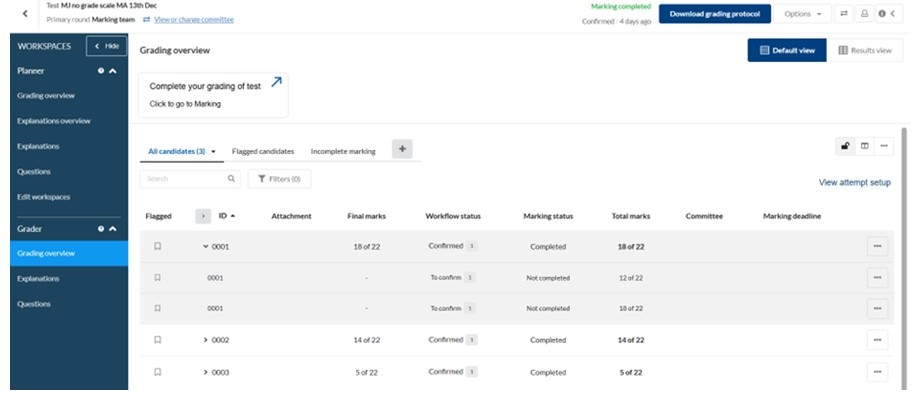
Figure 2: Showing Grading Overview for test not using a grade scale
Using a Grade Scale
Where a Grade Scale has been selected, it is however the marks that the students have achieved that will be shown in the Grade module initially. To convert to showing the grade then the option to ‘Use calculated’ needs to be selected from the drop-down menu in the ‘Your grade’ column needs to be selected. This will then show the grade in the ‘Grades’ column (see Fig 3 below).
The marks achieved by each student on the different attempts can be viewed in the ‘Grading Overview’ of the Grader workspace, by selecting the drop-down menu against the student ID (see Fig 3 below). Please note that grading will be shown as incomplete for the child test unless marking has been confirmed on the child test, which is not required to complete the grading.
If you are viewing the test in Grade as a Planner, only the final grade is visible. To view the marks the students have achieved on each attempt you require Grader access.

Figure 3: Showing Grading Overview for test using grade scales
Monitoring Student Progress
Student progress through the test can be monitored by downloading data from the Grade module. By selecting the ‘Options’ drop down there are two download options available:
- Download all data for multiple attempts as csv – this option provides a csv that includes a line for each attempt of the test for each student, it will show the students total score achieved on each attempt.
- Download final data for multiple attempts as csv – this option provides a summary report showing, with a line for each student, showing the number of attempts taken and what their final score will be (based on highest score achieved), based on attempts taken at the point of downloading the csv file.

Fig 4: Showing how to access download files through Grade
Students can view their score for each attempt via the Inspera Candidate Dashboard (https://coventryassessment.inspera.com).