1. Home
  2. Digital Teaching and Learning Tools
  3. Assessment and Feedback Tools
  4. Marking a Written Assessment in Inspera Grading Workspace
  1. Home
  2. Digital Teaching and Learning Tools
  3. Assessment and Feedback Tools
  4. Inspera
  5. Marking a Written Assessment in Inspera Grading Workspace

Marking a Written Assessment in Inspera Grading Workspace

Below is a step-by-step guide on how to mark a written assessment in the Grading Workspace on Inspera. The instructions are in the caption of each image.

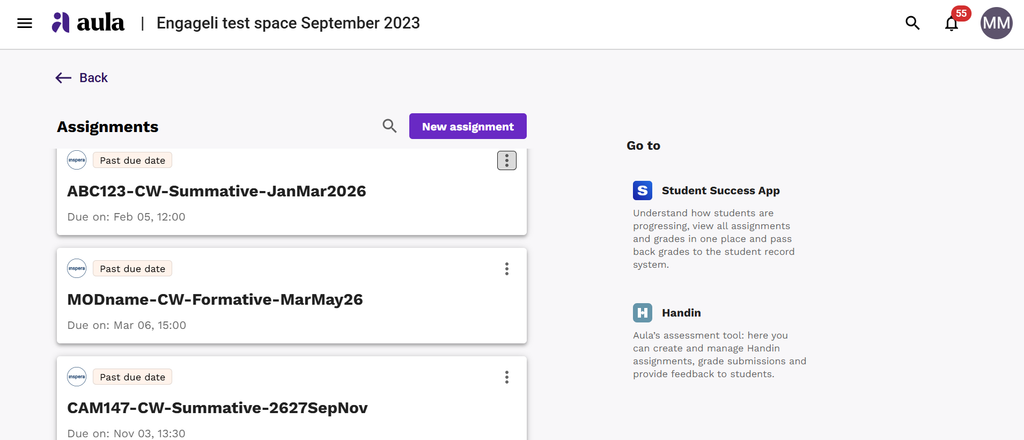
Step 1: Head to the Assignment Block on Aula and look for the assignment to mark. Double click to enter the assignment.
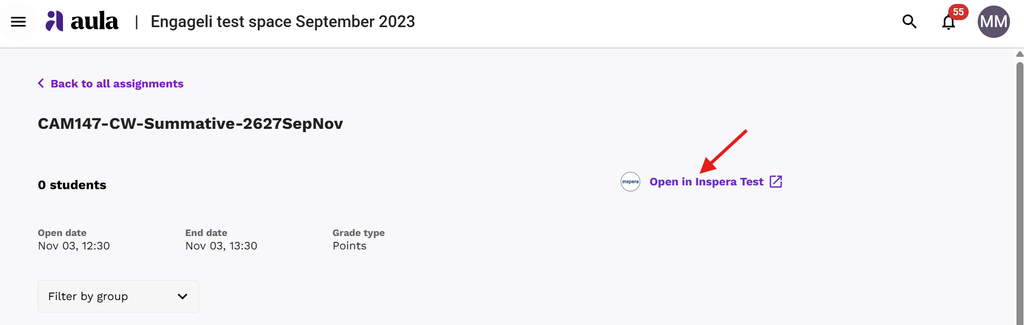
Step 2: Click ‘Open in Inspera Test’ to get to the assignment on Inspera.
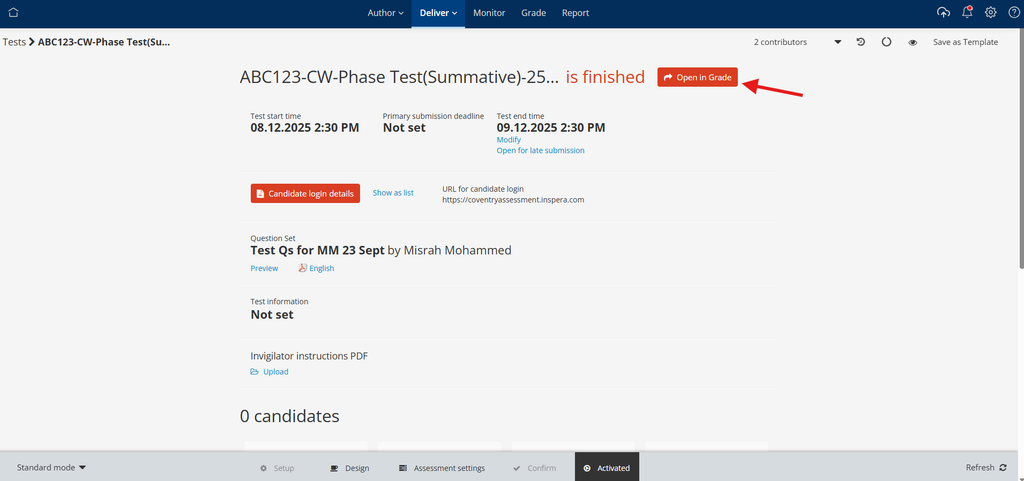
Step 3: Click ‘Open in Grade’ and you will be brought to the Grading Workspace where the submissions are.
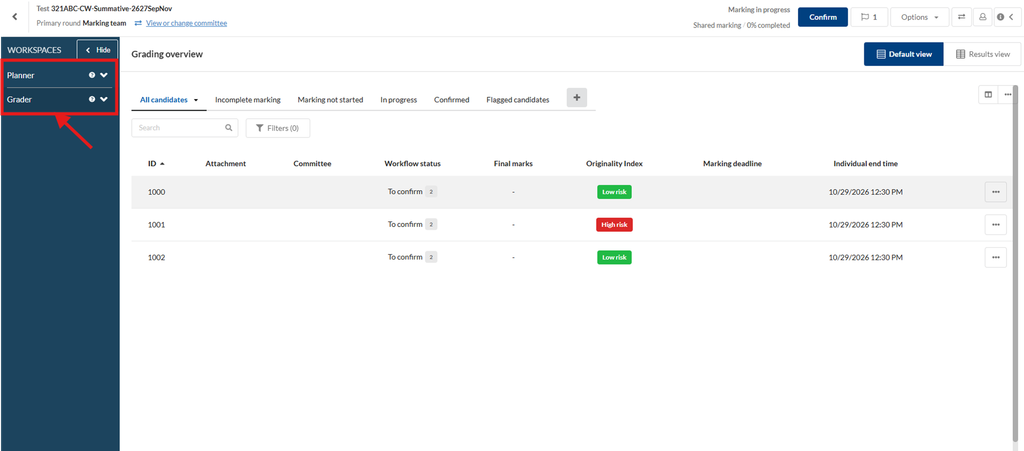
Step 4: Select the Grader workspace on the left-hand menu.
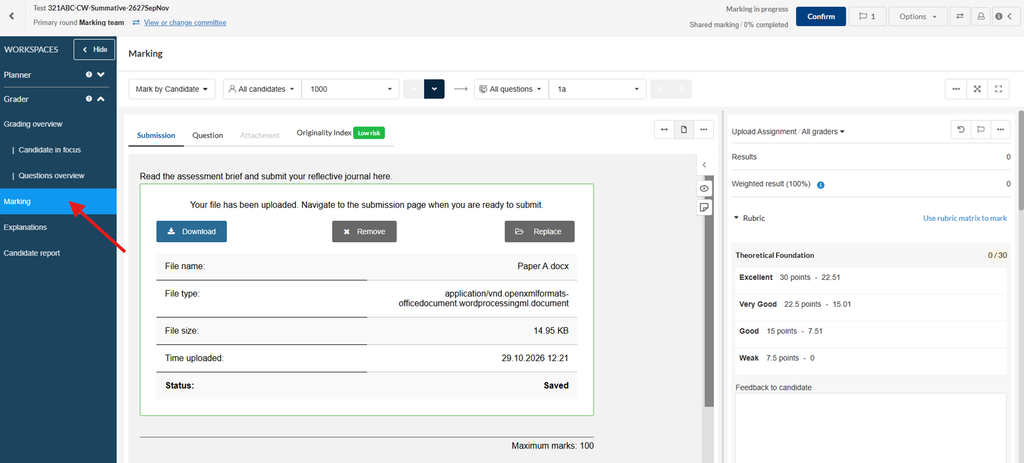
Step 5: Select ‘Marking’ in the left-hand menu.
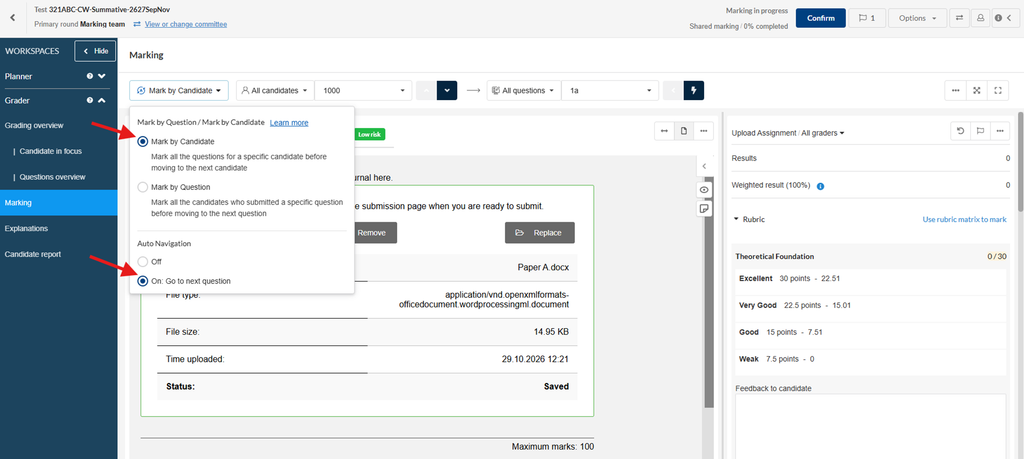
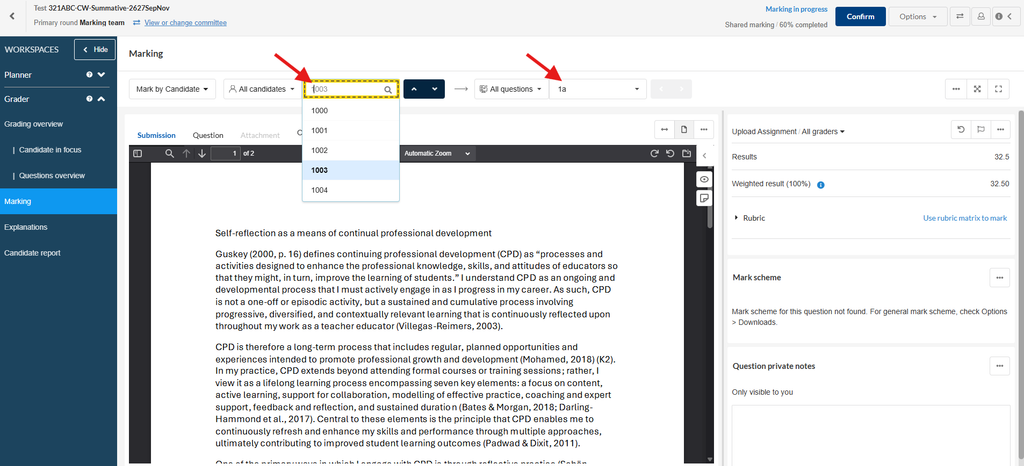
Step 6: Select how you want to mark the submission: Mark by Candidate or Mark by Question. If preferred, turn on the ‘Auto Navigation’ to go to the next candidate/question automatically after marks are given.
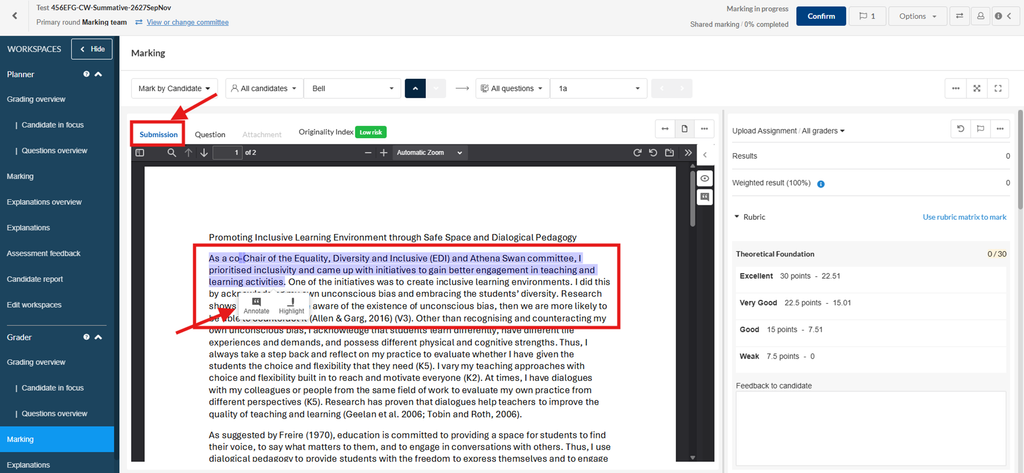
Step 7: Read the assignment within the ‘Submission’ area. Highlight the text to provide annotation within the submission. This feature is only available with a PDF document.
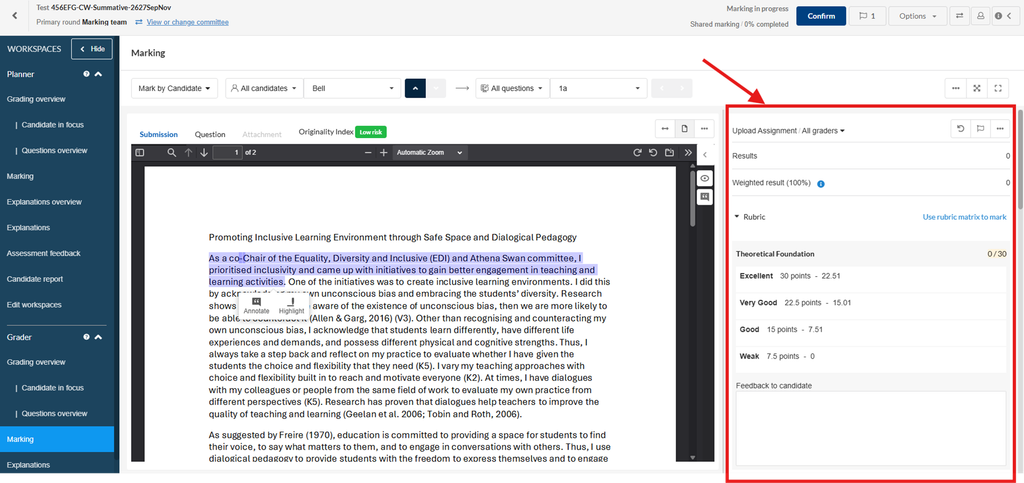
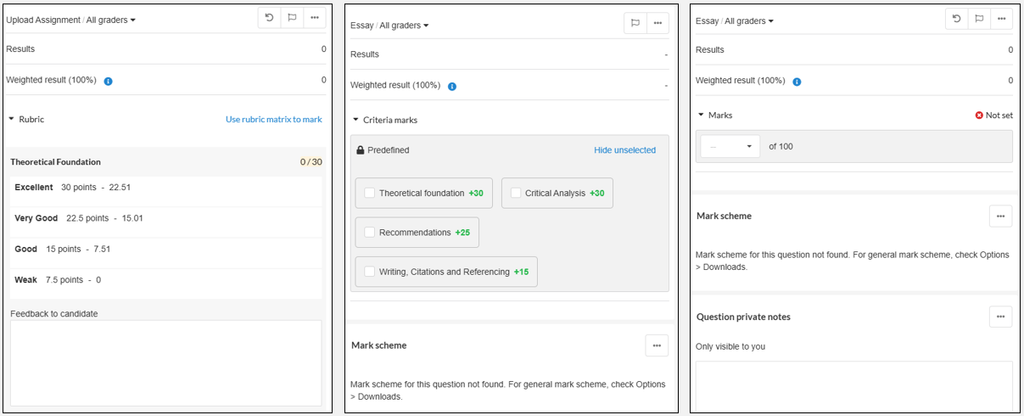
Step 8: Feedback and Marks can be provided in the right-hand area. This area will look different depending on how you set up the ‘Marks’ when creating the question item.

This image shows how the feedback and marking area will look, depending on how the ‘Marks’ is set up when creating a question item.
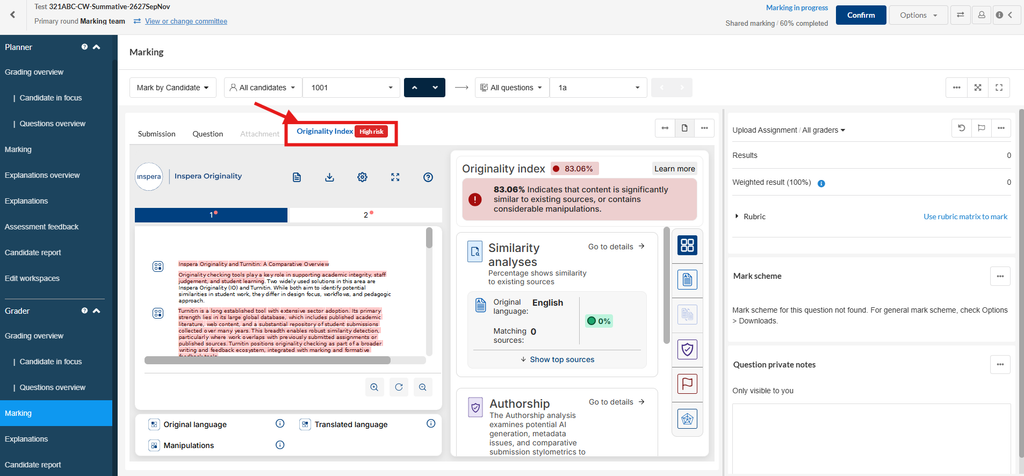
Step 9: To view the originality report, click on ‘Originality Index’
Step 10: If you do not turn on the ‘Auto Navigation’, you can go to the next candidate/question using the dropdown menu at the top of the grading workspace.
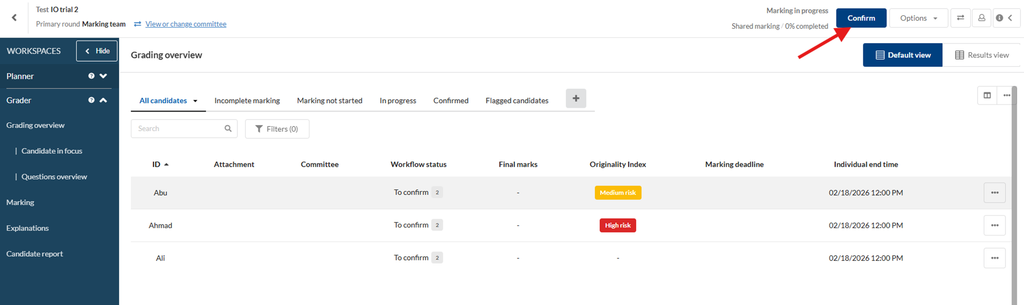
Step 11a: Once marking is complete, click ‘Confirm’ at the top right corner. Unless the default setting has been amended, only 1 grader needs to confirm the marks.
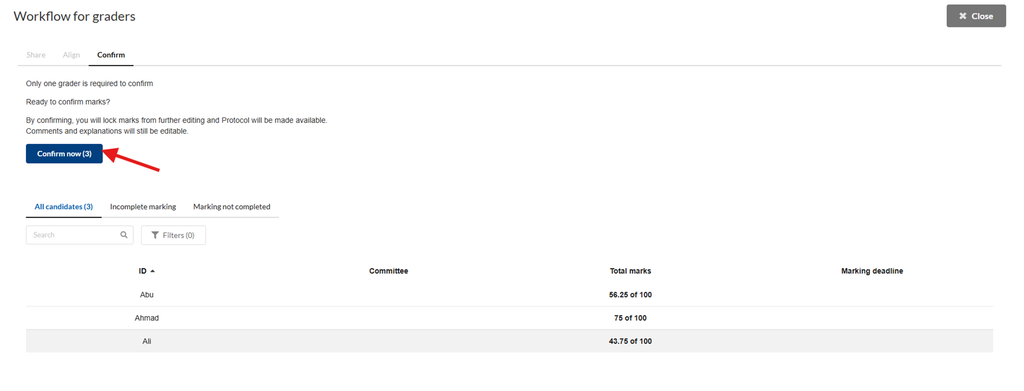
Step 11b: A new window will appear showing the list of candidates and their marks. Review and click ‘Confirm now’ to confirm all marks.

Author

Updated on November 6, 2026
Was this article helpful?
Skip to content