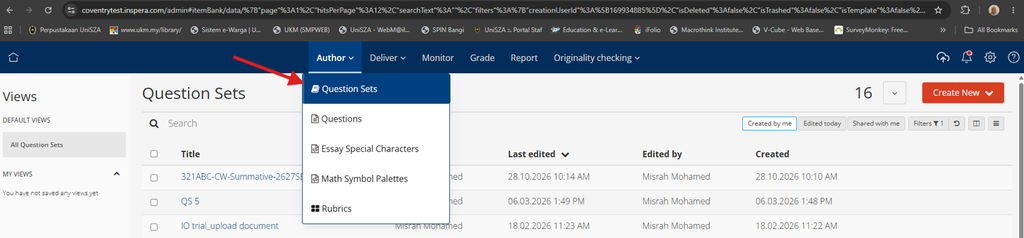
1. Log in to Inspera and head to the Author module to create a new ‘Question Set’.
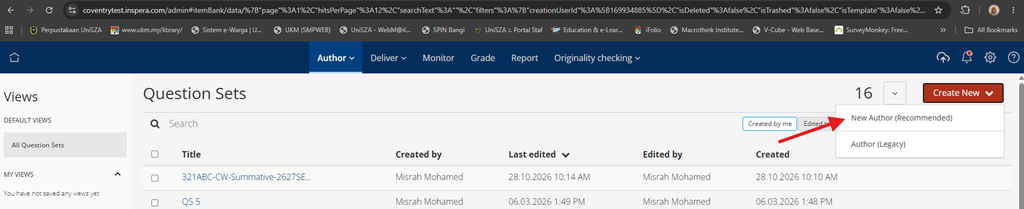
2. Click on ‘Create New’ and select ‘New Author’, the recommended interface.
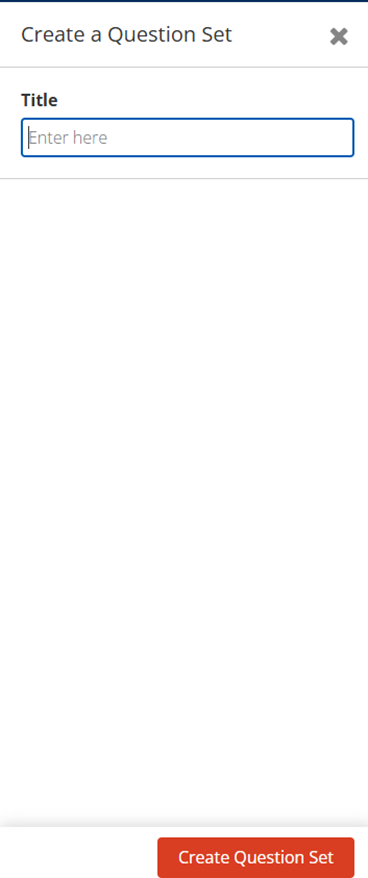
3. Enter the Title of the Question Set and click ‘Create Question Set’. You must use the University’s naming convention.
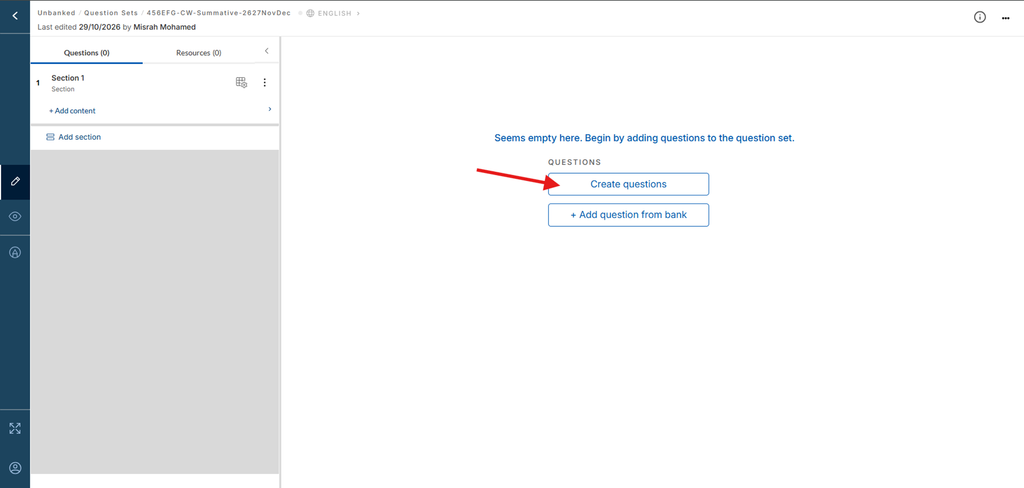
4. Click on ‘Create questions’ to create a new question item. If you have an item in the question bank, you can click ‘+ Add question from bank’.
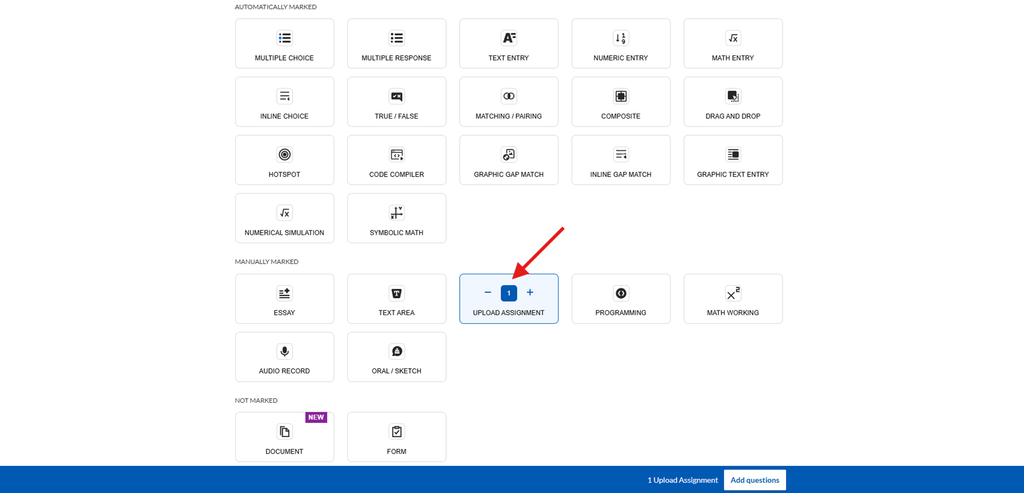
5. Scroll down to ‘Manually Marked’ question type and select ‘Upload Assignment’. Click Add Question.
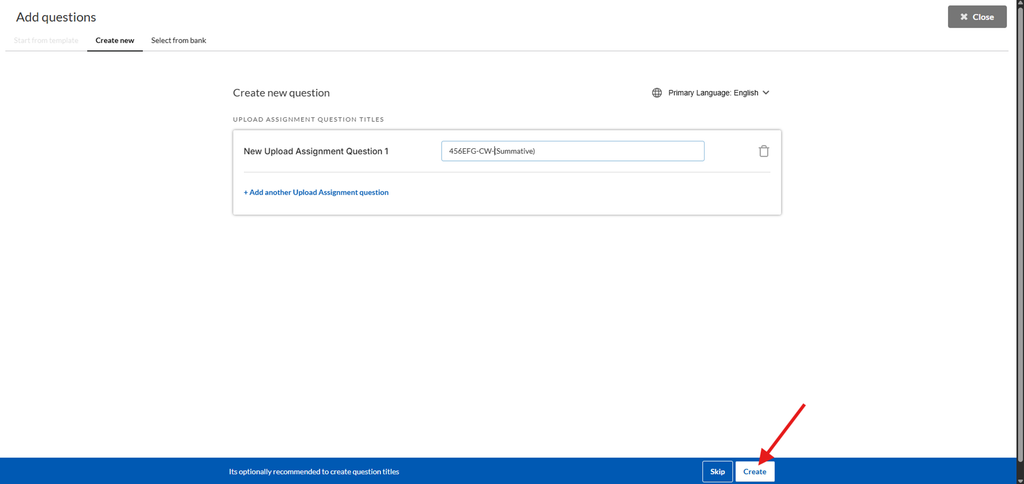
6. Name the question using the University’s naming convention then click ‘Create’. E.g.: ModuleCode-CW(Summative) or ModuleCode-Reflection(Formative). If generic and does not related to any particular module: Topic Suptopic
7. Write your instructions within the question area. If you want to use the annotation and highlight features during marking, make it clear to the candidates to upload a document in PDF format only.
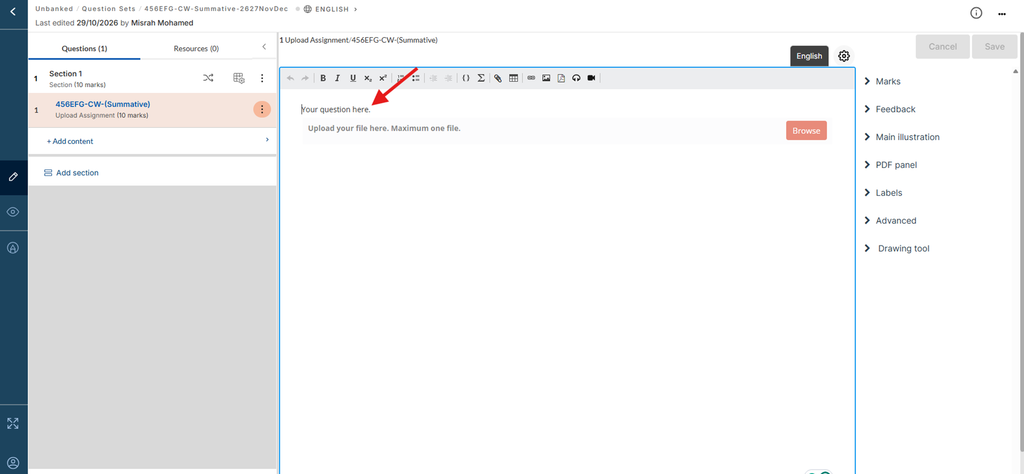
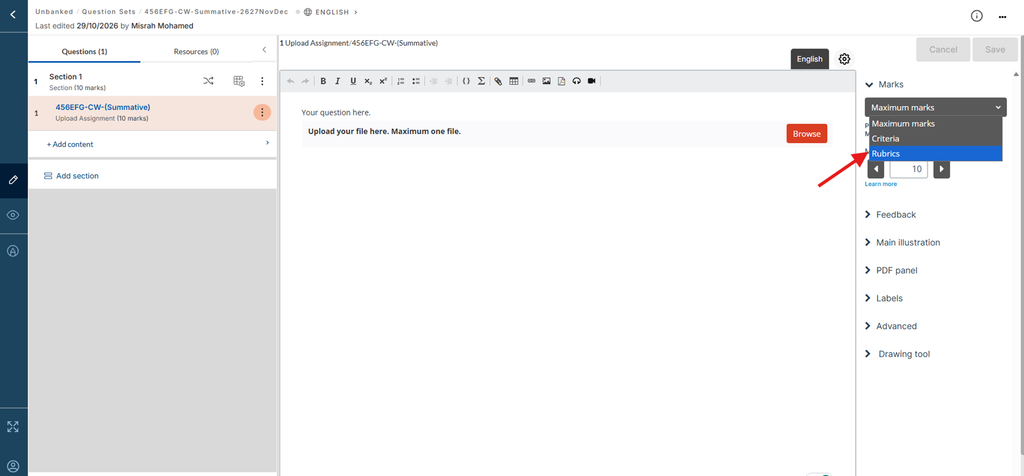
8. Go to ‘Marks’ and select how you want the submission to be marked (max marks, criteria, rubric).
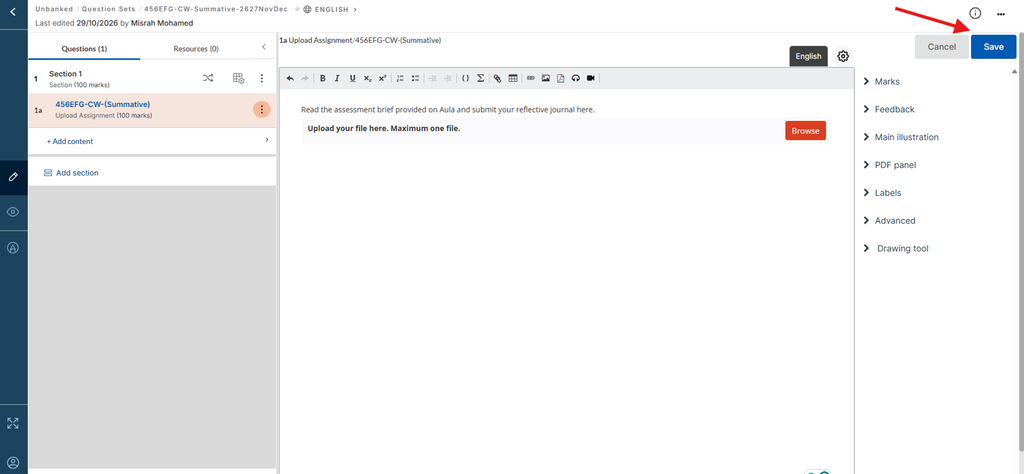
9. Click ‘Save’ and you’ve successfully created your Question Set.