Why?
The Government Digital Service (GDS) monitors public sector body web content for compliance with PSBAR (Public Sector Bodies Accessibility Regulations).
GDS interprets WCAG (Web Content Accessibility Guidelines) as requiring captions that accurately capture the meaning of the audio. “automatically-generated captions do not meet user needs or accessibility requirements, unless they are confirmed to be fully accurate. Usually they need significant editing.”
How? managing Recorded Captions:
After accessing the Recordings tab in the Engageli Admin Portal, you can manage captions (the subtitle or VTT files) using the options in the Download Subtitles column.
NOTE you will have had to have previously enabled “Create caption vtt file when recording” setting for these to be created (see Engageli – adding closed captioning – instructor (teacher))
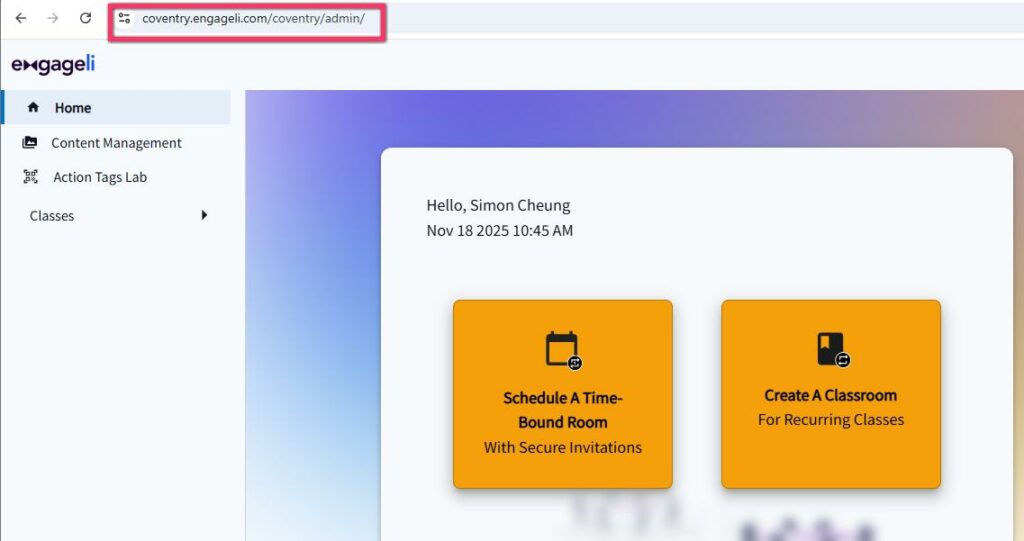
1. Access the Admin Portal: Log into the Engageli Admin Portal.
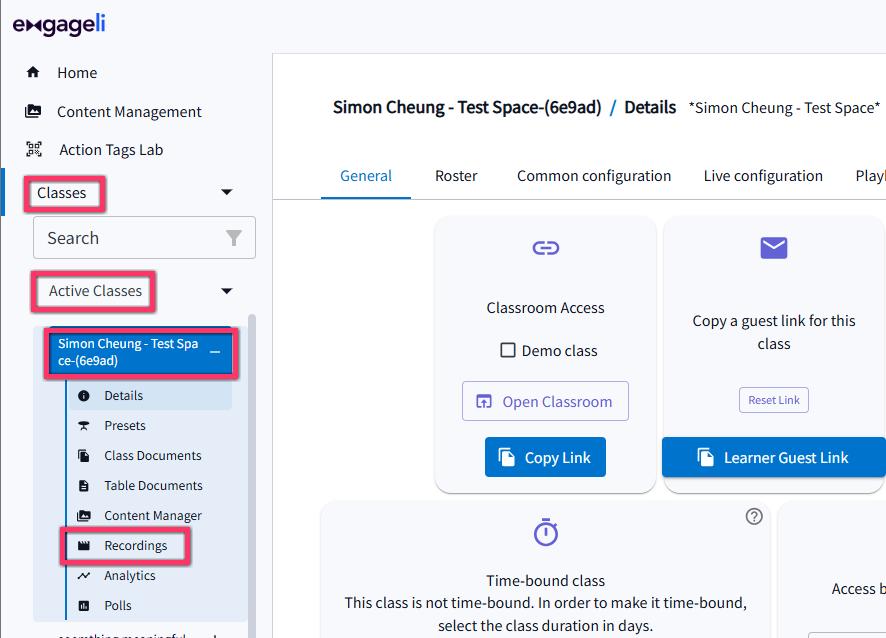
2. Navigate to Recordings: Go to the Classes section, select your class (from the Active Classes or Archived Classes lists), and then click on the Recordings tab.
3. Locate the Recording: Find the specific recording for which you want to manage captions in the list.
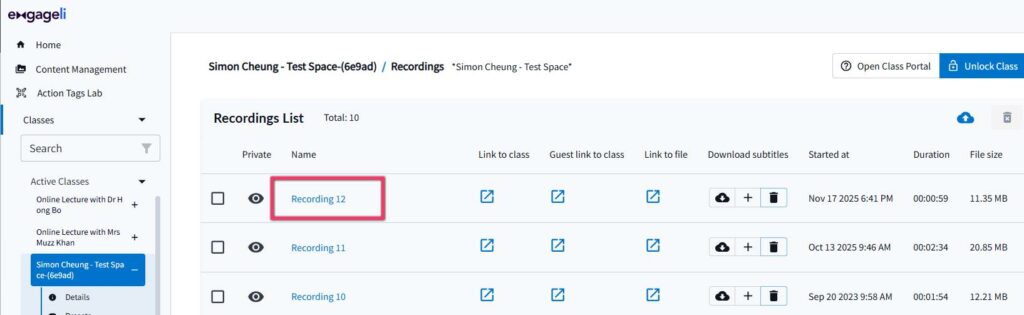
The Download Subtitles Column: In this column, you will find three buttons for managing the associated subtitle file (VTT file):

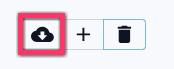
4. Download: Click the download icon to save the existing VTT file to your computer for review or editing.
5. Edit the Caption File: If you downloaded the VTT file to correct errors, use a text editor (for Windows we recommend Notepad app, for Mac we recommend TextEdit app) to make the necessary changes, then use the Replace option to upload the corrected VTT file.
Notepad
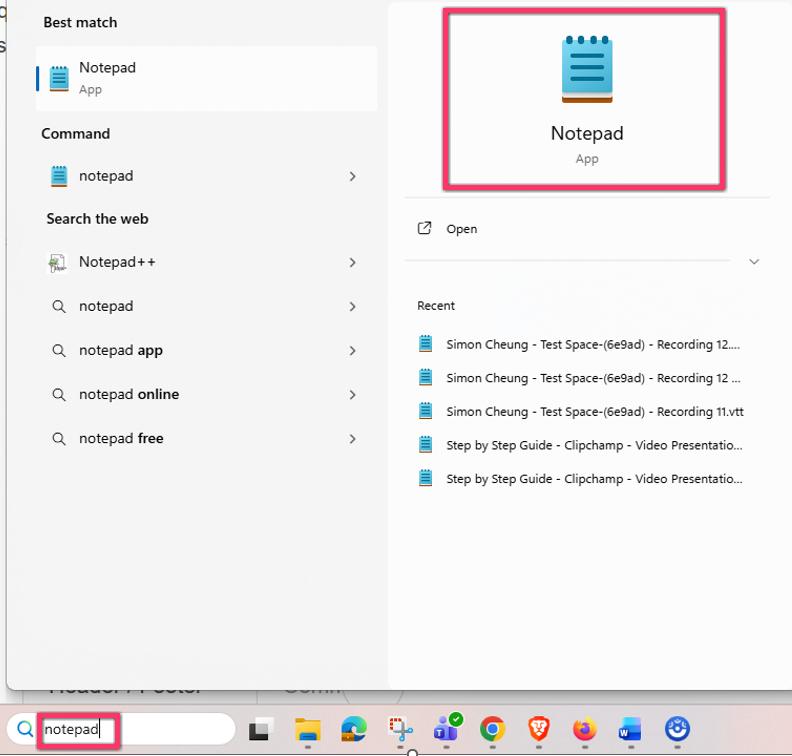
To find your Notepad app use your windows app search bar to type in and search

Type in and search for Notepad app
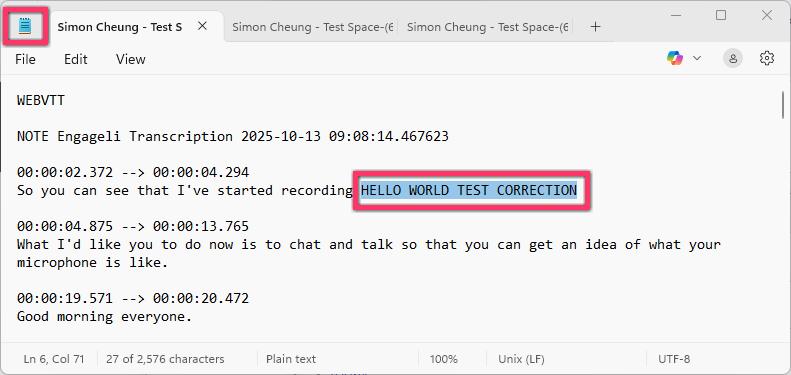
Editing VTT file
You can use Notepad text editor app to open and edit the text of your VTT file, don’t edit the timecodes or other headings; just the narration corrections and save back as VTT file.
Replace: Click the replace icon to upload a new, corrected VTT file, which will overwrite the existing one.
Delete: (FYI only) Click the delete icon to remove the VTT file associated with the recording. CAUTION: When deleted, learners in the Playback Room will not see captions for that recording (and is not reversible).
Related information:
Engageli – adding closed captioning – instructor (teacher) This guide explains how to enable closed captioning on an Engageli classroom.
Engageli Adding Closed Captioning – Learner useful link to provide to students so they have a guide to turning on caption display for themselves in your enabled Engageli classroom.