This guide explains for students how to add closed captioning directly on Engageli. (step by step)
Captions are available during a live class and transcripts can be viewed in the Engageli Playback room. The captions ONLY capture the instructor’s audio, and learners’ audio on the podium when the class is in Room Mode.
Please remember Engageli recommends using the following web browsers:
- Google Chrome
- Microsoft Edge
- Brave
- Opera
- Safari, but only on mobile devices (Learner experience only).
How to Turn on Captions in Engageli
Accessibility Settings:
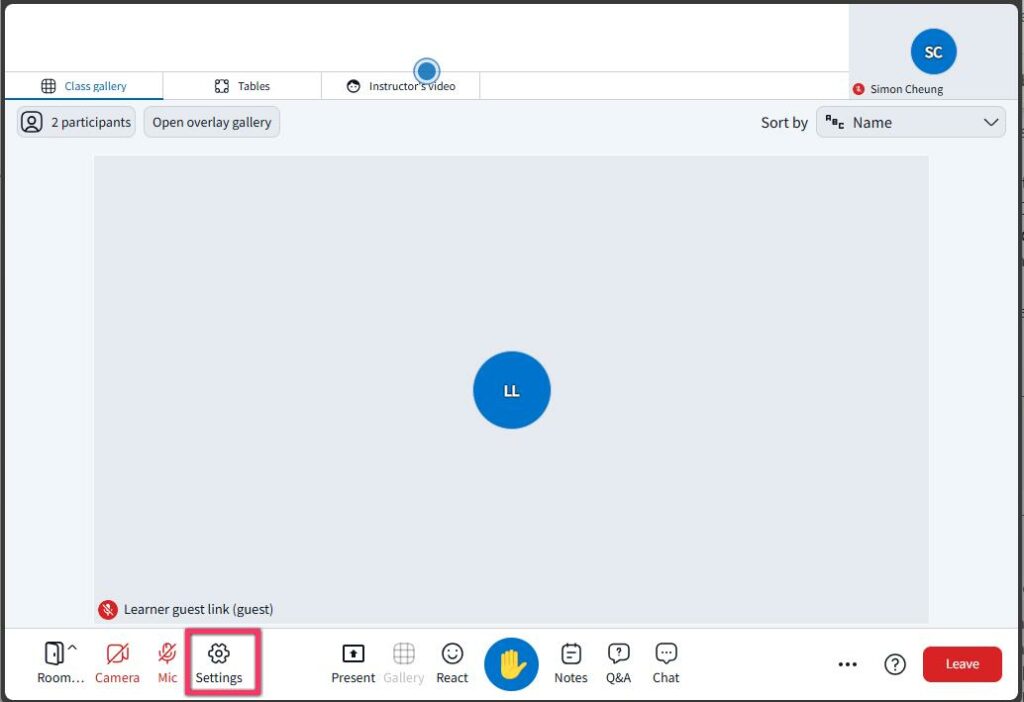
- Open Settings (gear icon) at the bottom left of the screen.
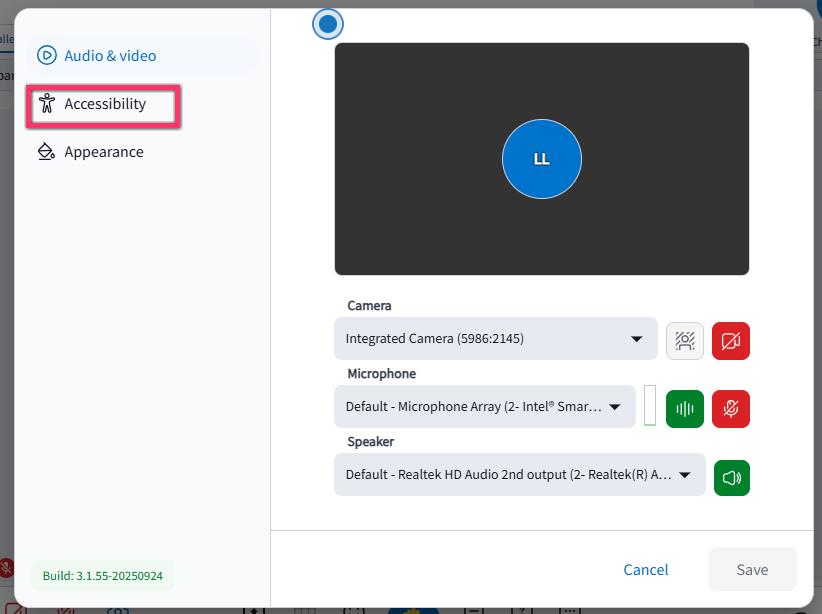
2. Select Accessibility.
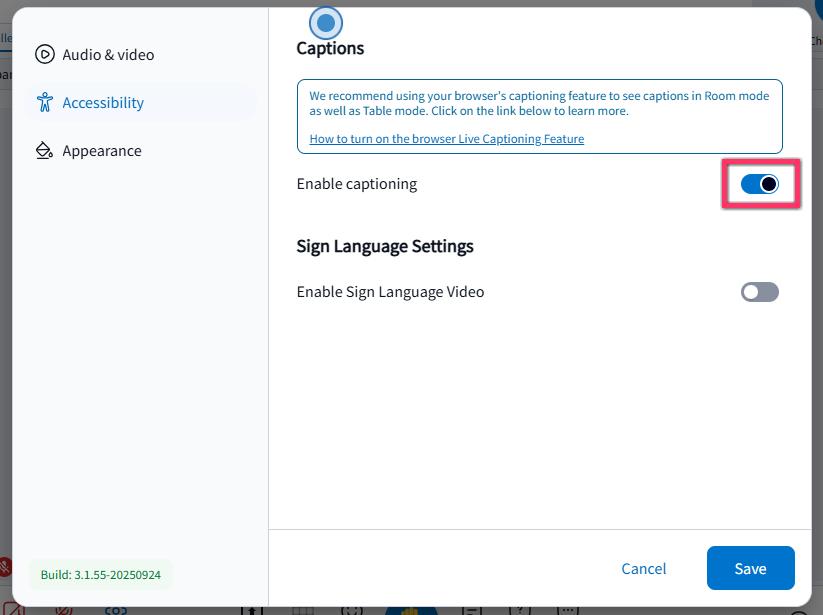
3. Toggle Enable captioning to the right. You might have to wait a few moments for the captions to initialize.
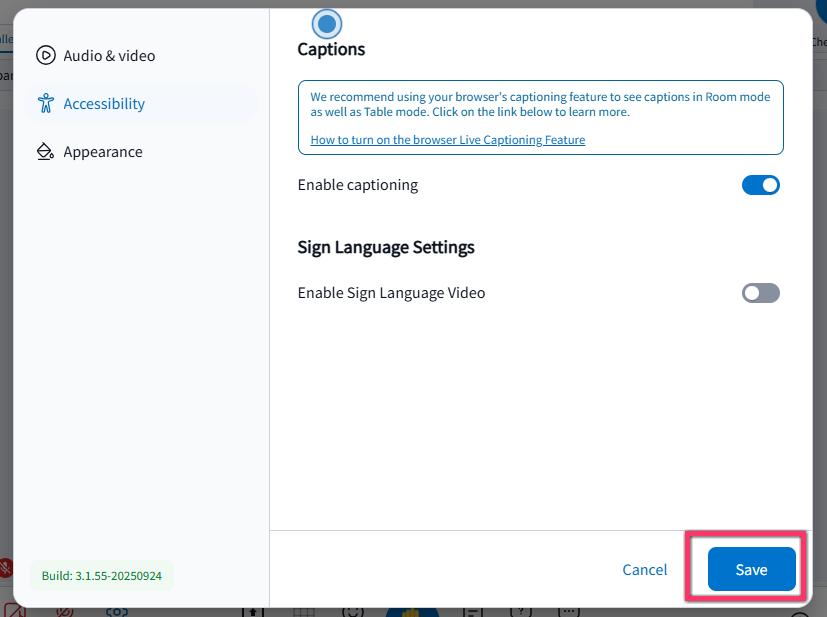
4. Click the Save button.
Seeing Captions
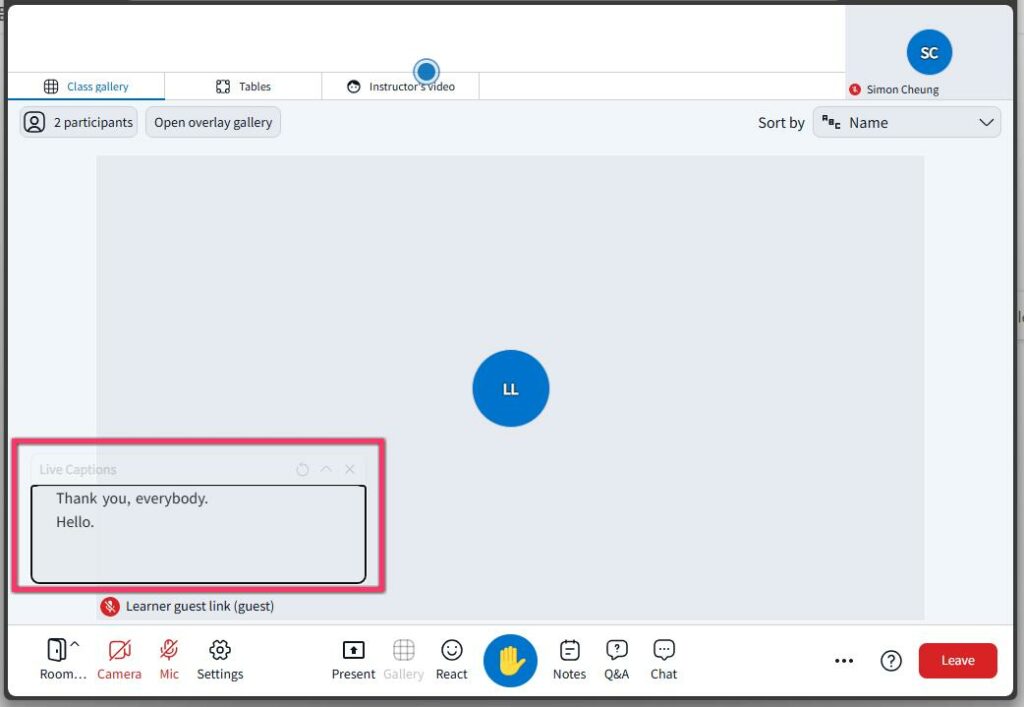
After you’ve enabled captions on Engageli, you will see captions in a display that you can move around the screen.
Further information:
Engageli official site – Adding Closed Captioning – Learner
Site includes information on:
How to Turn on the Google Chrome ‘Live Captioning’ Feature
Playback Room Transcript