This guide explains how to add closed captioning directly on Engageli. (step by step)
Captions are available during a live class and transcripts can be viewed in the Engageli Playback Room. The captions ONLY capture the instructor’s audio, and learners’ audio on the podium when the class is in Room Mode.
To enable the setting for your Engageli class use the Admin Portal link below,
https://coventry.engageli.com/coventry/admin
and please remember when doing this Engageli recommends using the following web browsers:
- Google Chrome
- Microsoft Edge
- Brave
- Opera
How to Enable Captions in the Admin Portal
First, before your class, enable captions in the Admin Portal.
- Go to the Admin Portal (above link).
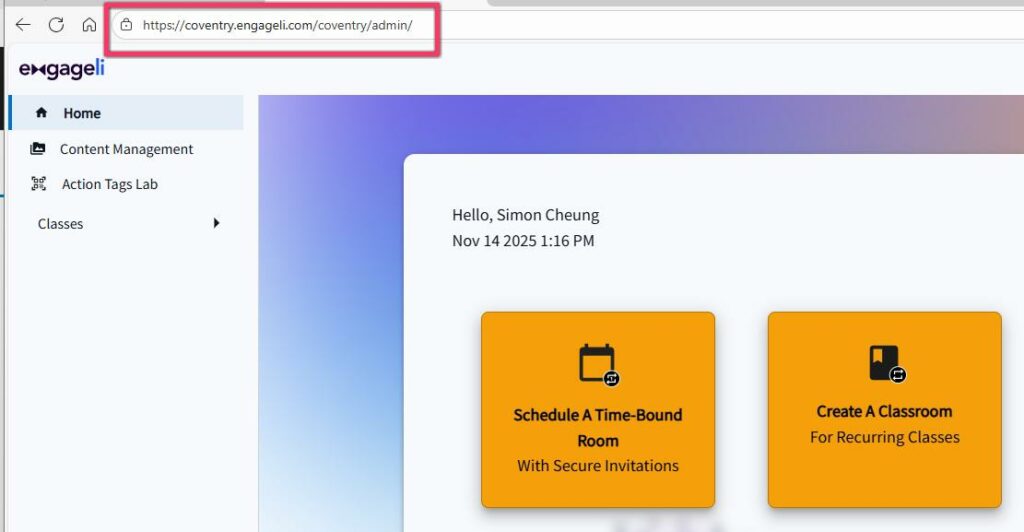
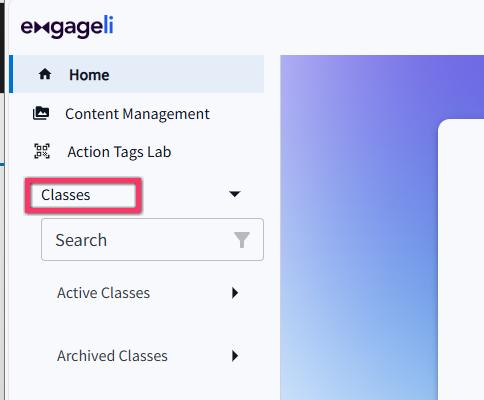
2. Click Classes on the left to expand the menu.
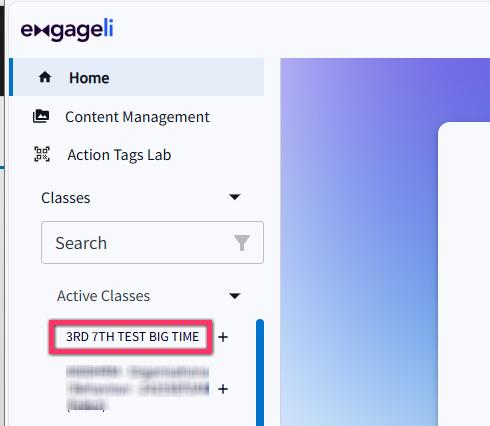
3. Select your class or use the search field to find your class.
4. On the Details page, click the Live Configuration tab.
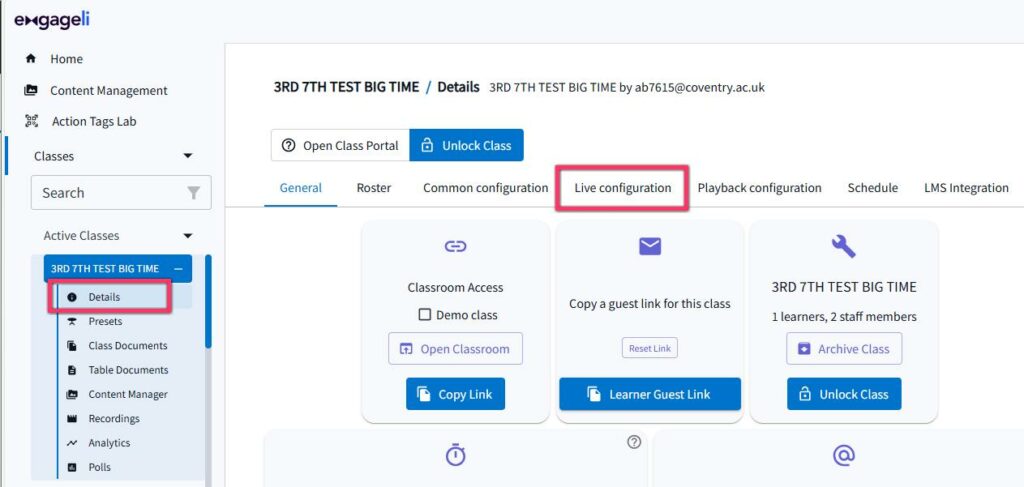
5. Scroll down and check the box for Captions during live session.
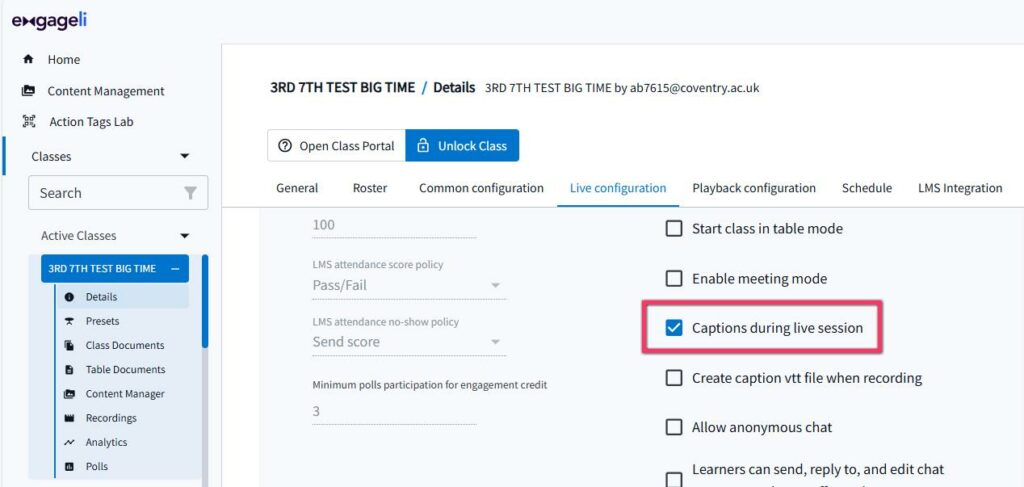
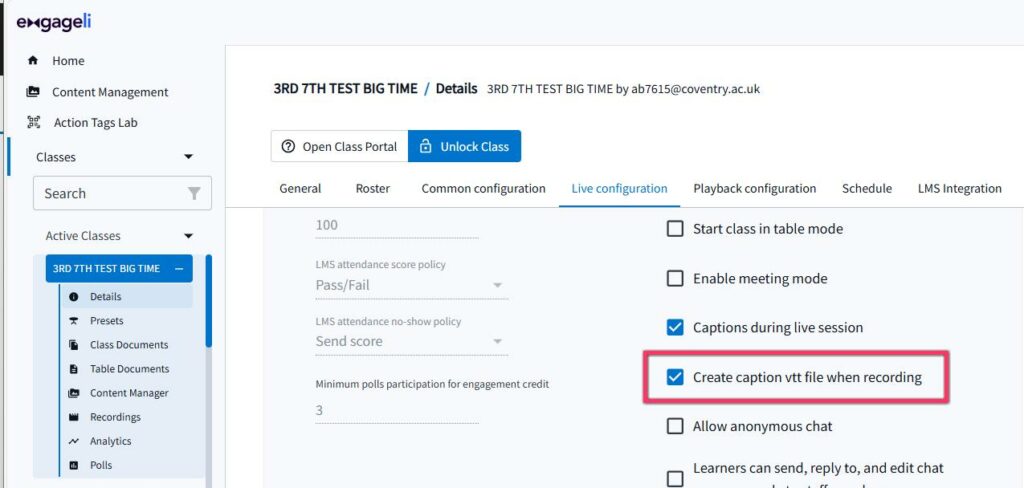
6. Check the box for Create caption vtt file when recording. [This creates the transcript.]
7. Click Save Changes.
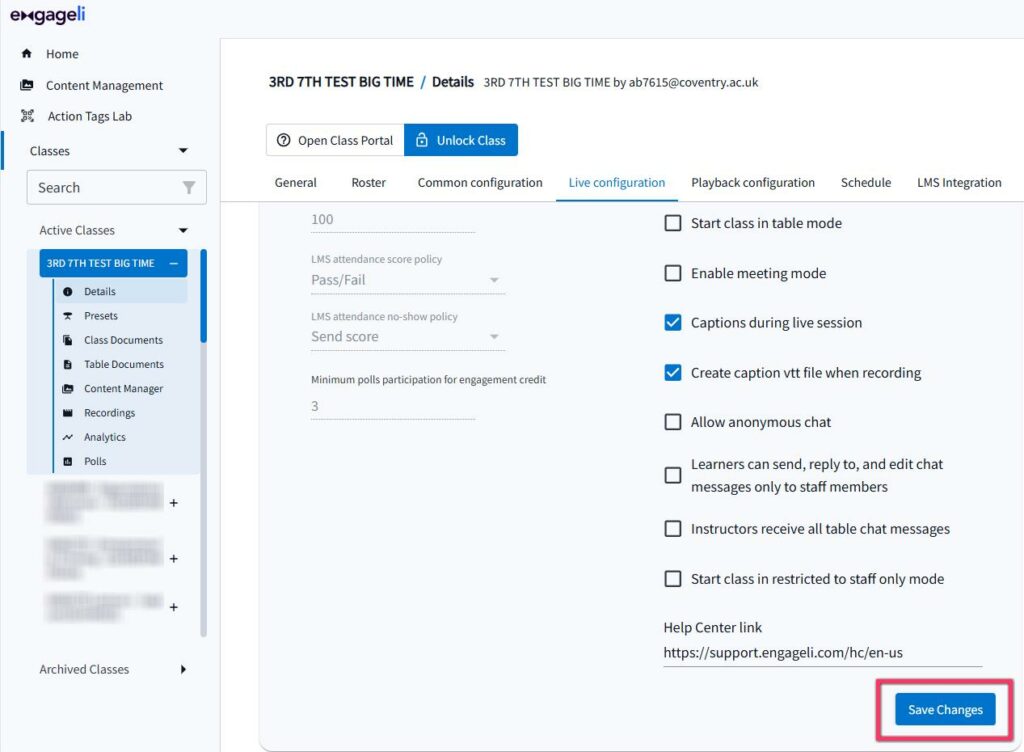
You have now enabled the close captioning facility for that Engageli classroom.
Further information:
Engageli Adding Closed Captioning – Learner useful link to provide to students so they have a guide to turning on caption display for themselves in your enabled Engageli classroom.
Engageli recordings (Playback room) editing and correcting auto generated captions. Essential information on checking and making accurate compliant transcripts to PSBAR (Public Sector Bodies Accessibility Regulations).
Engageli official site – Adding Closed Captioning – Instructor
site includes further detailed information on:
How to Turn on Captions in Engageli
How to Turn on the Google Chrome ‘Live Captioning’ Feature
Seeing Captions
How to Direct Your Learners to Turn on Captions
Playback Room Transcript