Introduction
Adobe Podcast is a web-based platform that you can use to record and edit audio content. It uses a simple ‘text-based editor’ – this means it transcribes your audio and you can edit the recording by editing the transcript, just as if you are editing a Word doc! There’s no need to learn complex timeline-based tools.
It also includes a great ‘enhance speech‘ feature that uses AI to clean up background noise in your audio or video recordings.
Can I use it?
Staff
Staff can use the premium version of Adobe Podcast as it is included as part of the University’s subscription to Adobe’s Creative Cloud for Education plan.
To access Adobe Podcast, go to the link below:
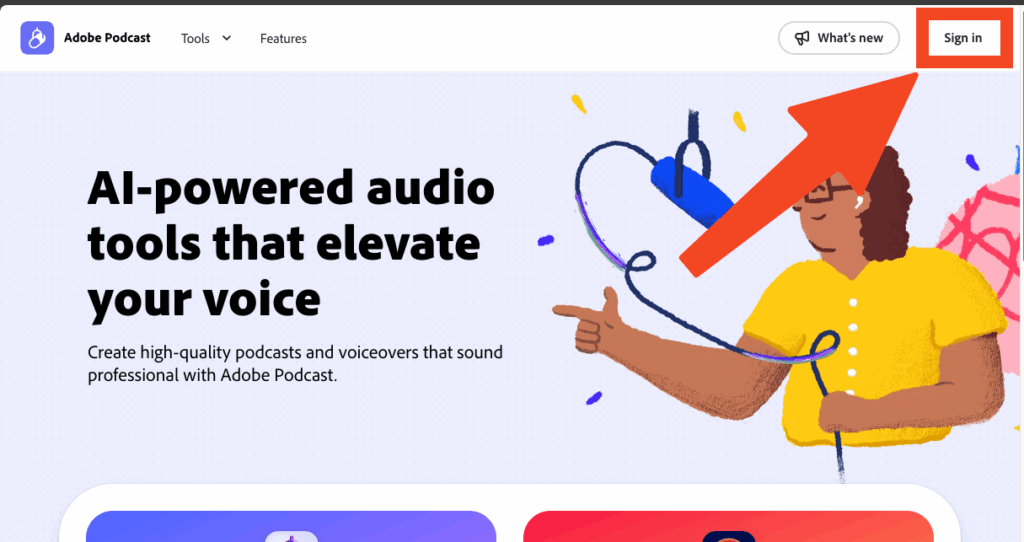
Select ‘Sign in’ at the top-right and then enter your normal University email and password.
Students
Unfortunately, Students are not generally included in the University’s Adobe license. However, they can sign up and use the free version of Adobe Podcast.To read more about the features included in the free plans vs the premium plan, please see:
Adobe Podcast free vs premium features (podcast.adobe.com)
What can I do with it?
When you first access Adobe Podcast, you’ll see two main options:
- Record a podcast: Record, edit, and enhance your audio within a single interface. You can record your own voice, invite remote guests to join a recording session, and edit the audio by simply editing the auto-generated transcript. There’s a library of sound effects and royalty-free music to make your recordings more professional and engaging. You can also transcribe and edit audio or video files you’ve already got, rather than starting from scratch. You can also turn your audio recording into an ‘Audiogram‘ – a video with an animated transcript.
- Enhance Speech: This feature removes background noise from your recordings, making your voice sound as if it were recorded in a professional studio. You can choose the amount of ‘enhancement’ using sliders – the default can sound a bit strange, so I typically turn it down to around 70% for ‘Speech’. You can enhance the recordings you make within Adobe Podcast, and also upload audio and video files you’ve made using other tools and enhance those.
Training and guidance
Adobe Podcast guides (adobe.com)
(Video) Adobe Podcast – How to record and edit audio for non-techys (youtube.com)