Aula Home Experience Best Practices
What is the Home page?
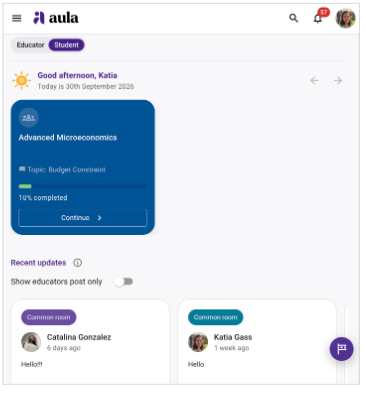
Aula’s Home is the first page you see when you log in to Aula. It brings together updates and key information across all spaces, and is designed to work on the device of your choice.
An exploration of each Home’s section and what it means for your teaching
🟣 Educator and Student Views
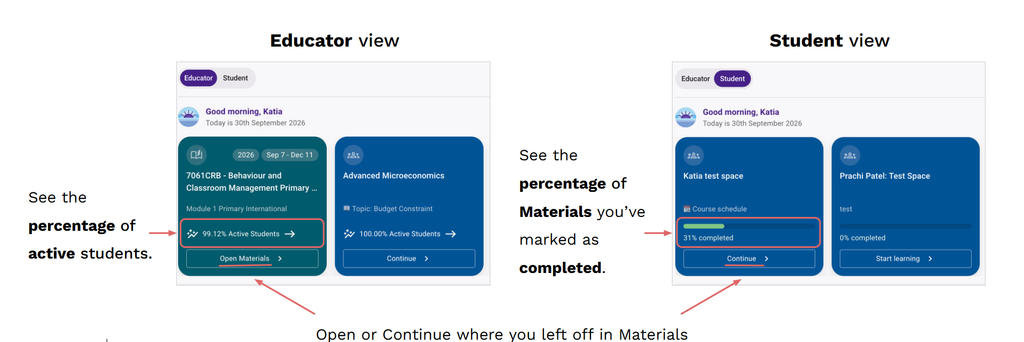
Use the toggle at the top of Home to switch between viewing spaces where you are an educator and a student. The widgets will update to show information relevant to each role.
🟣 Support Student Engagement and Progress
- Review active student percentages regularly and use the Engagement analytics to identify students who may need support or are falling behind.
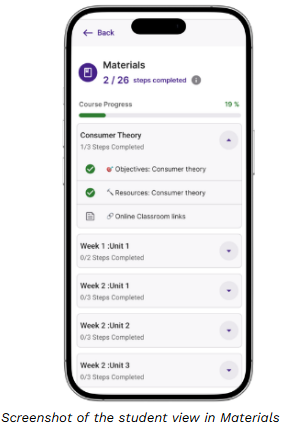
- Encourage students to mark Materials pages as complete to track their progress and plan their learning.
- Give Materials pages clear, descriptive titles so students can recognise what they’ve completed and what comes next.
- Find further guidance in the Aula Engagement Checklist.
🟣 Recent Updates
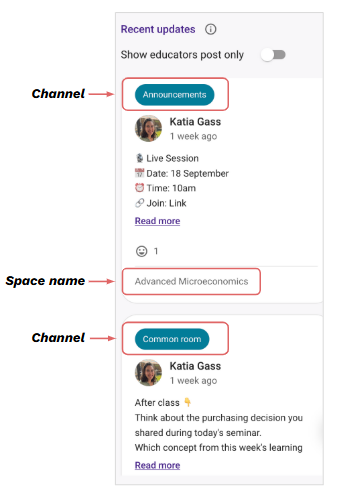
Students see the latest Announcements and Common Room posts from across ALL their spaces directly in Home.
✨ Best practice:
Reduce unnecessary noise by avoiding duplicate messages in both channels or across spaces with the same group of students.
Use each channel for its intended purpose:
- Announcements > Key updates, reminders and next steps.
- Common Room > Questions, discussion and peer interaction.
🟣 Messages
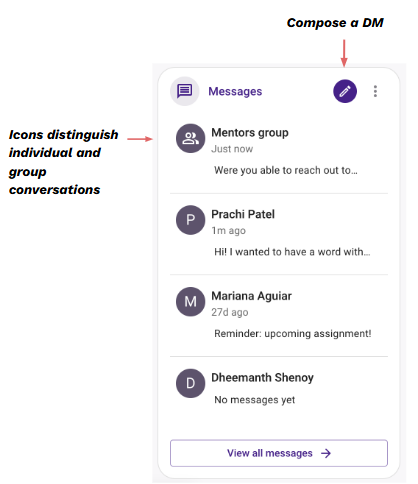
Your latest direct messages appear on Home, where you can open and reply to them without leaving the page.
✨ Best practice:
Use direct messages to keep in touch with students through individual check-ins or private support. Students also see their messages on Home, making these conversations easier to notice and access.
🟣 Upcoming Assignments
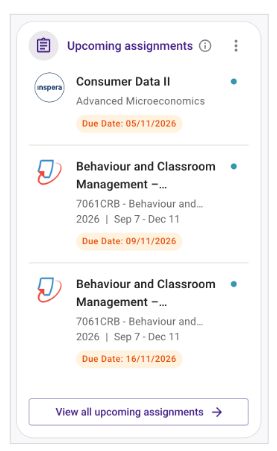
Students see ALL upcoming assignments visible to them across their spaces* on Home, helping them plan around submission dates.
✨ Best practice:
- Set up all required assignments at the beginning of the course so students can plan their work.
- Use clear assignment titles that indicate the submission type and whether students need to submit work, such as “Draft”, “Final submission” or “Resit only”.
🟣 Outlook Email And Campus Services
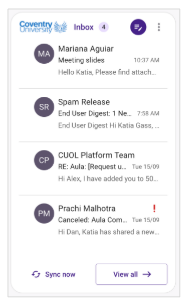
Outlook Email: View emails directly on Home!
Encourage students to connect their accounts so important university updates are easier to spot – even when they don’t regularly check their university inbox.
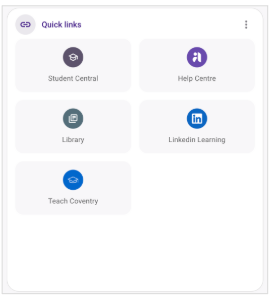
Campus Services: Quick links give students easy access to university services and resources, helping them find important information and support.
🟣 Quicker Access to Your Spaces
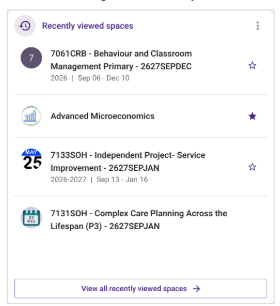
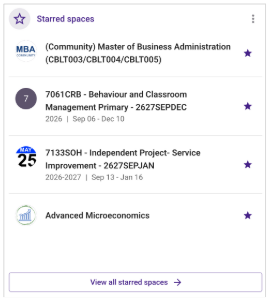
Save time by opening your recently viewed and starred spaces directly from Home.
Recently Viewed Spaces: Select a space to return to the last page you visited.
Starred Spaces: Select a starred space to go to its Space Navigation page.
🟣 Personalise Your Home
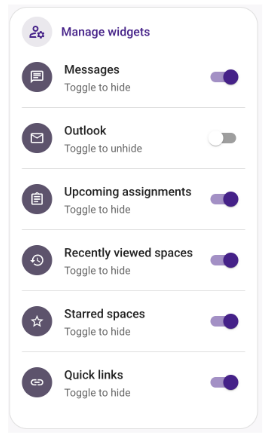
Use Manage widgets to choose what appears on Home.
Toggle widgets on or off to display the information that matters most to you.
Need further guidance?
- The guided tour: select the purple flag icon on Home
- Visit the articles: in the Help Centre
- Contact Aula Support: support@aula.ac.uk